View IP Advanced Fault Diagnosis Tasks
Last Updated:2025-11-14
Prerequisites
Ensure that you have created an IP advanced fault diagnosis task.
Task details
- In the left navigation panel, select Site Monitor, then click the IP Advanced Fault Diagnosis tab to open the Task List page.
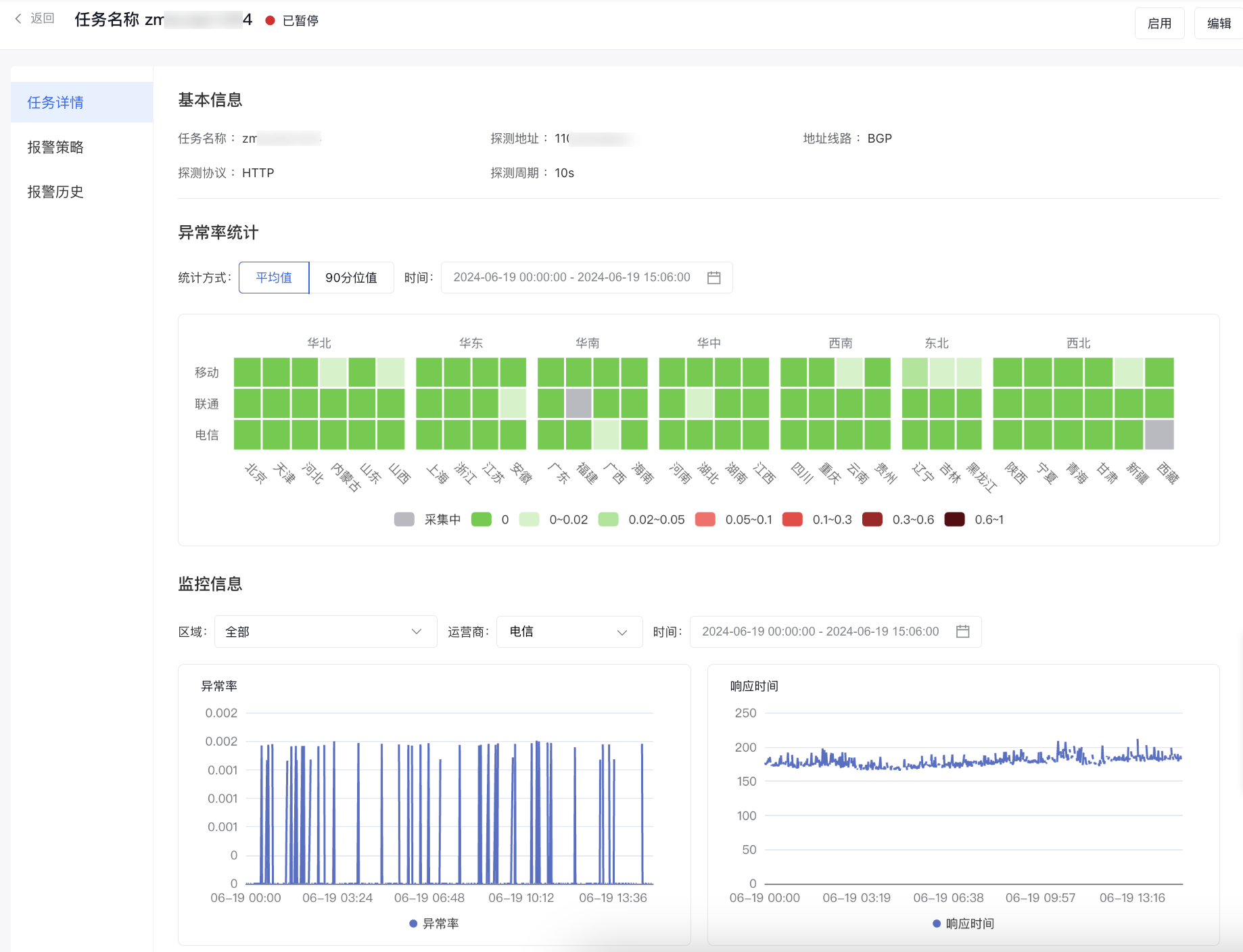
- Click on a task name to navigate to the Task Details page.
Metric description
| Protocol type | Metric name | Metric definition |
|---|---|---|
| HTTP/TCP | Exception rate | Exception probe count/total probe count * 100% |
| HTTP/TCP | Response time | The time taken from sending a request to receiving a response at a probe node. |
| PING | Packet Loss Rate | The proportion of lost packets compared to the total transmitted packets. Packet loss is usually caused by physical line failures, device malfunctions, network congestion, routing errors, and similar issues. |
| PING | RTT | The time taken for a data packet to travel from the local machine to the server and back with the server's response |
Alarm strategy
Add the alarm strategy
- In the left navigation bar, click on the Site Monitor and then the IP Advanced Fault Diagnosis tab to open the Task List page.
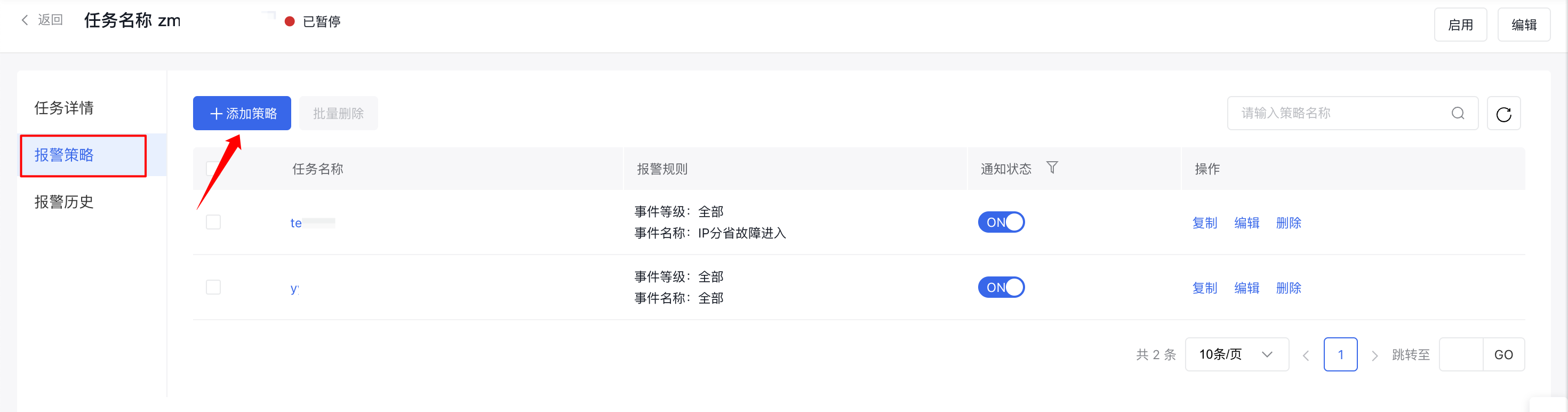
- Click the Alarm Strategy button in the operation column to open the Alarm Strategy List page for the specific task.
- Click the Add Strategy button to navigate to the page for creating an alarm strategy for this IP advanced fault diagnosis task. Complete the form to finalize the alarm strategy creation.
View Alarm Strategy
- In the left navigation bar, click on the Site Monitor and then the IP Advanced Fault Diagnosis tab to open the Task List page.
- Click the Alarm Strategy button in the operation column to open the Alarm Strategy List page for the specific task.
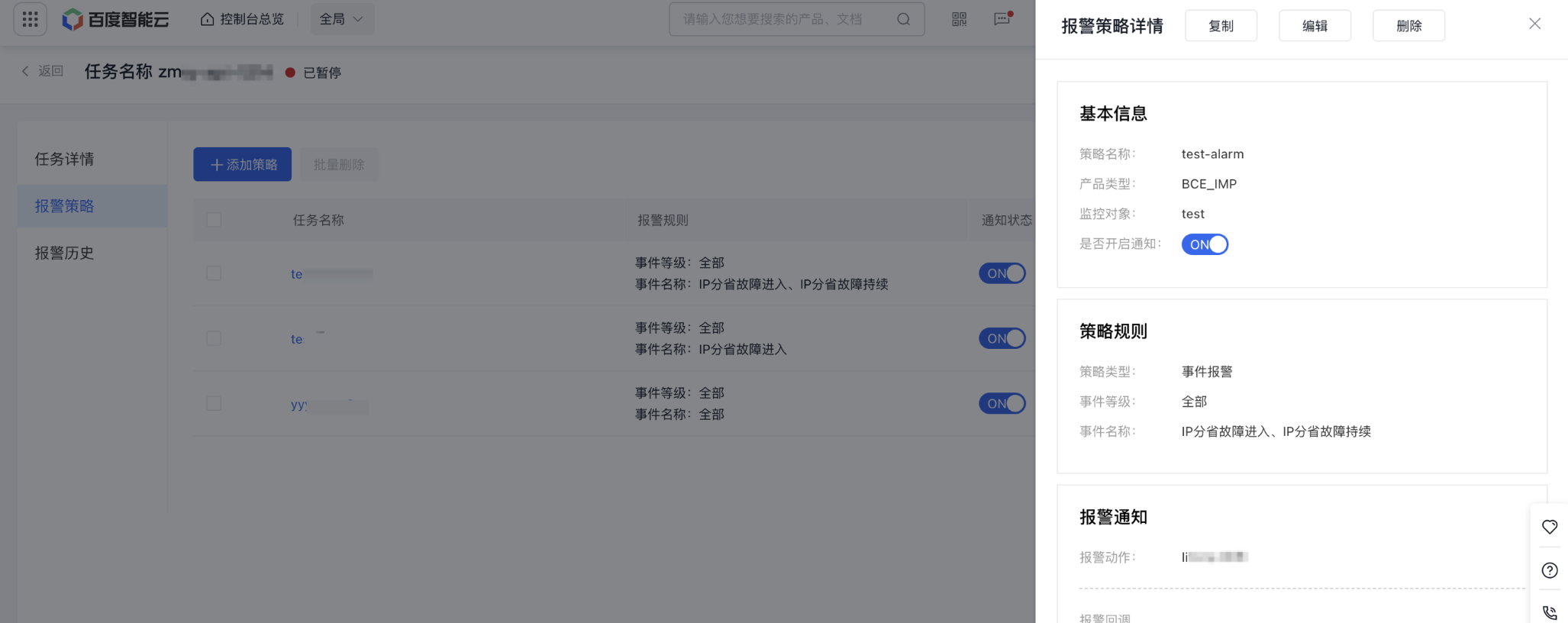
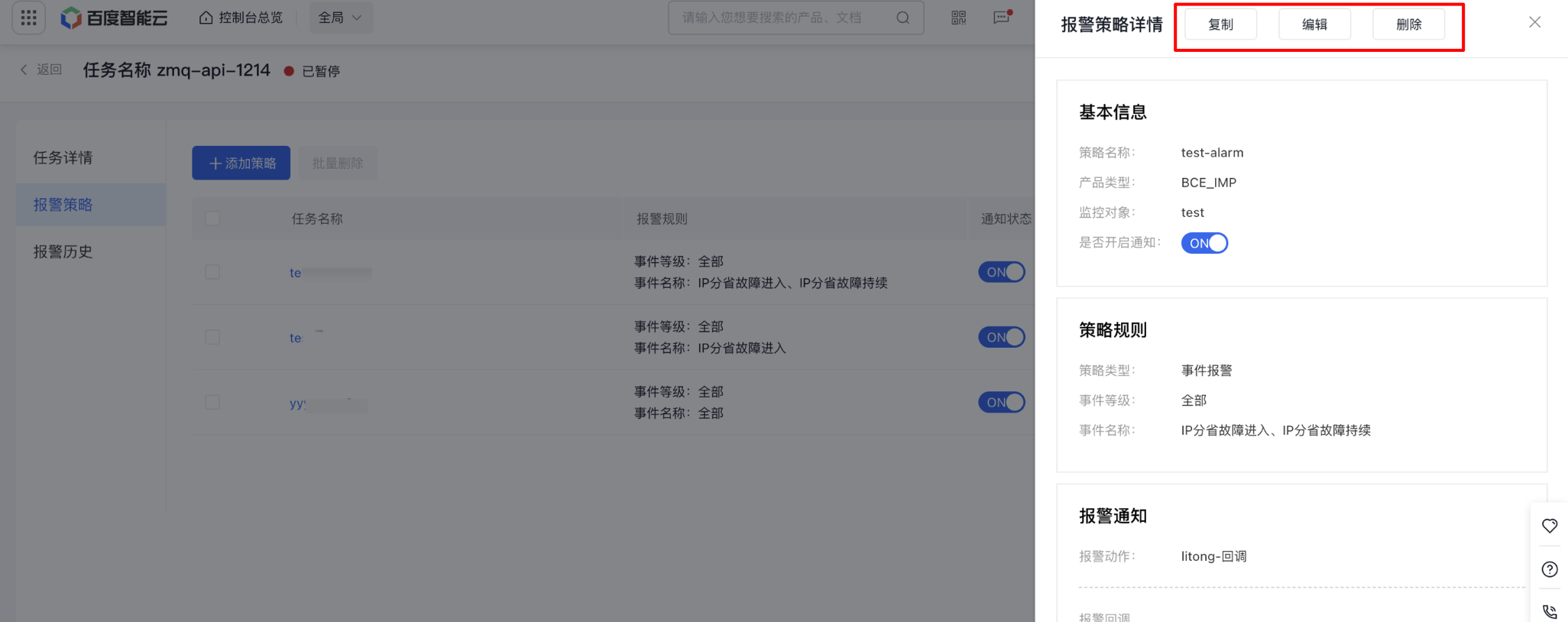
- Click the name of an alarm strategy to open the Alarm Strategy Details pop-up window.
Management alarm strategy
- In the left navigation bar, click on the Site Monitor and then the IP Advanced Fault Diagnosis tab to open the Task List page.
- Click the Alarm Strategy button in the operation column to open the Alarm Strategy List page for the specific task.
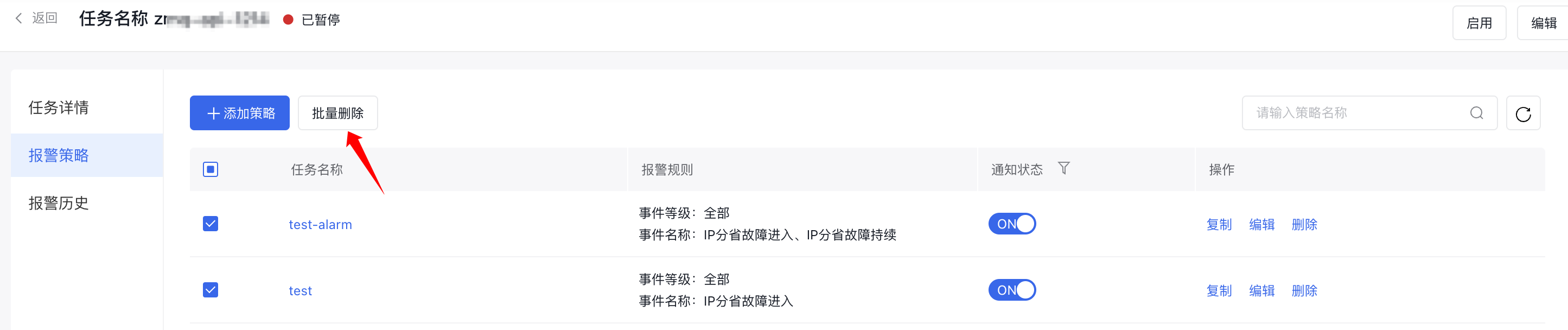
- Click the Copy, Edit, or Delete button in the operation column to duplicate, modify, or remove an alarm strategy. You can also select multiple strategies for batch deletion.
Alternatively, click the strategy name, then choose Copy, Edit, or Delete within the Alarm Strategy Details window to modify or delete a specific strategy.
Alarm history
- In the left navigation bar, click on the Site Monitor and then the IP Advanced Fault Diagnosis tab to open the Task List page.
- Click the Alarm Strategy button in the operation column to open the Alarm Strategy List page for the specific task.
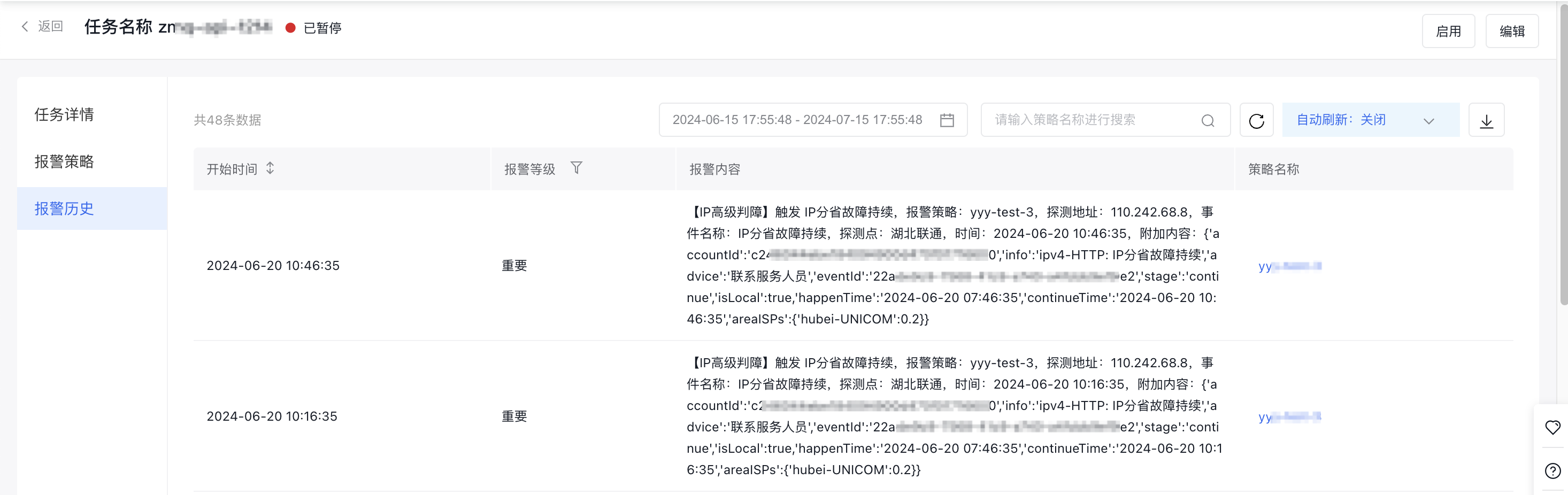
- Click the left-side Alarm History tab to open the Alarm History Information page.