
Usage Scenarios for Different Notification Channels
Last Updated:2025-11-14
Overview
If you have different scenarios or requirements for message notification channels while using Baidu Cloud Monitor, BCM provides multiple options to meet your needs.
Requirement background
A user needs to receive alarm messages through multiple channels promptly to meet requirements in different scenarios
Solution overview
- Common notification channels include email, SMS, phone calls, etc.
- Push cloud product metric alarms or fault events to your own operation platform via alarm callbacks
- Push messages to office applications like WeCom, DingTalk, and Infoflow via webhook
- Subscribe messages via Kafka (coming soon)
Operation steps
Below are product operation guides for different scenarios:
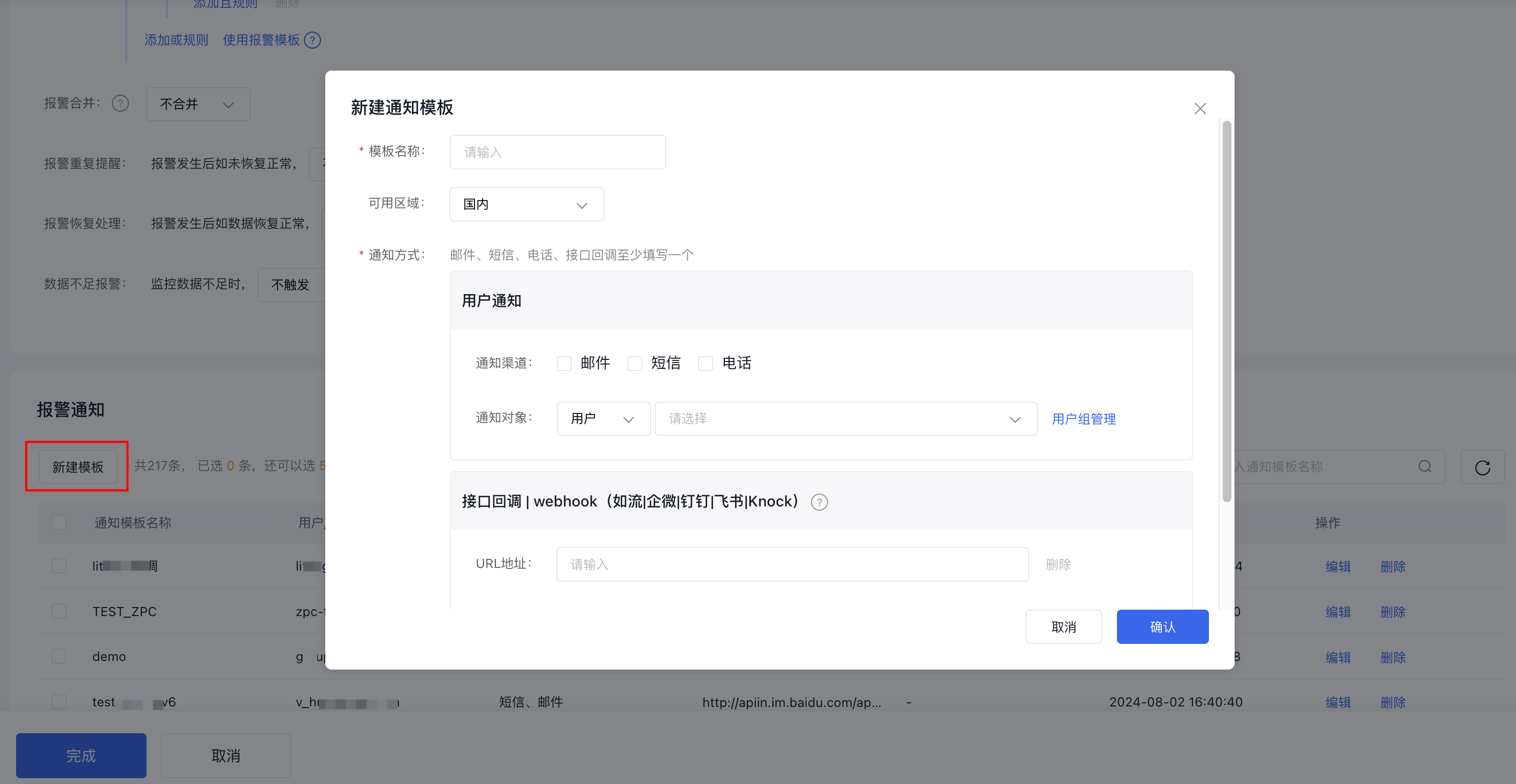
- The standard configuration method for notification channels involves selecting "New Template" while creating an alarm strategy in the BCM console and enabling specific notification channels as required.
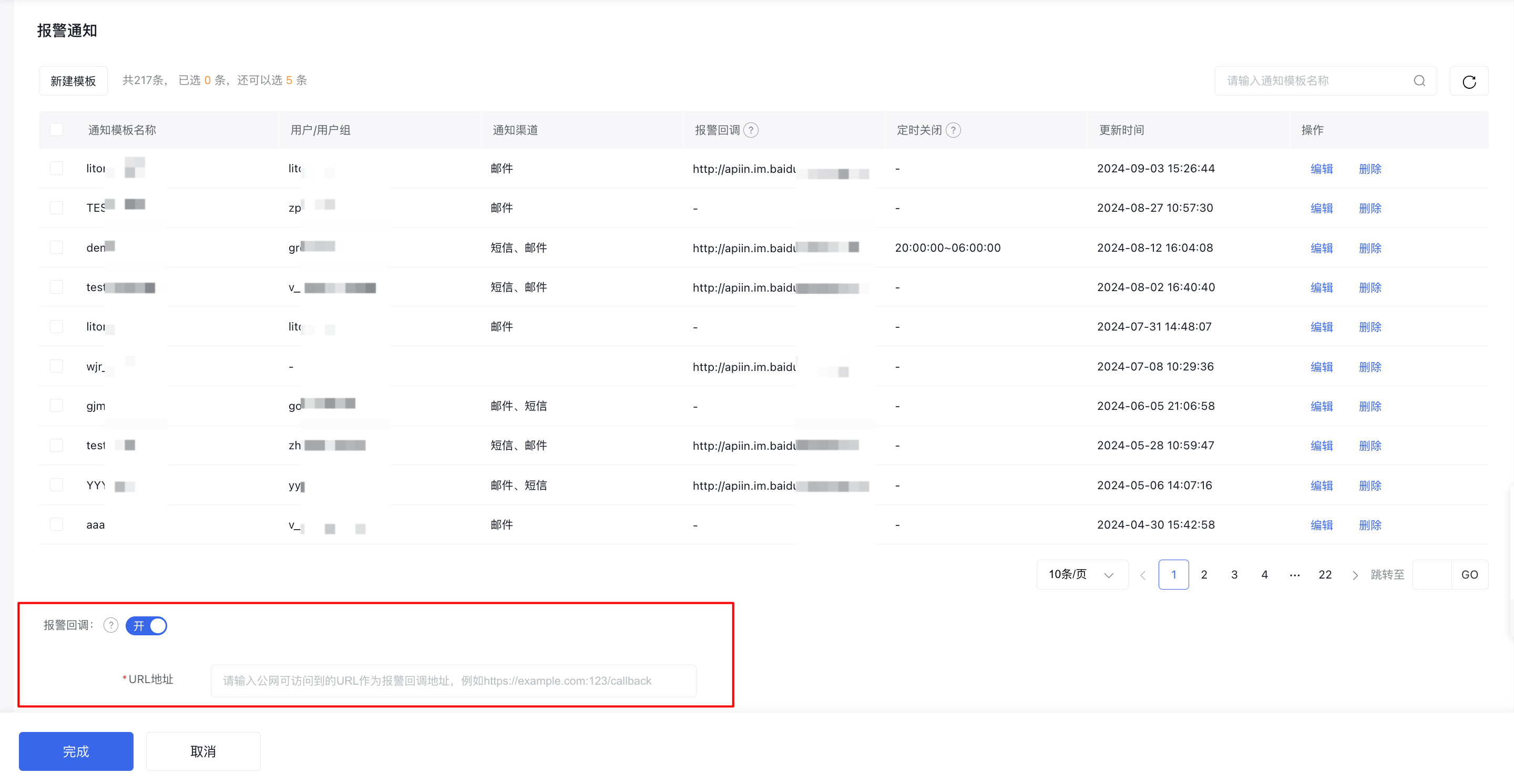
- Push cloud product metric alarms or events to your own operation platform via alarm callbacks. For details, refer to Alarm Callback.
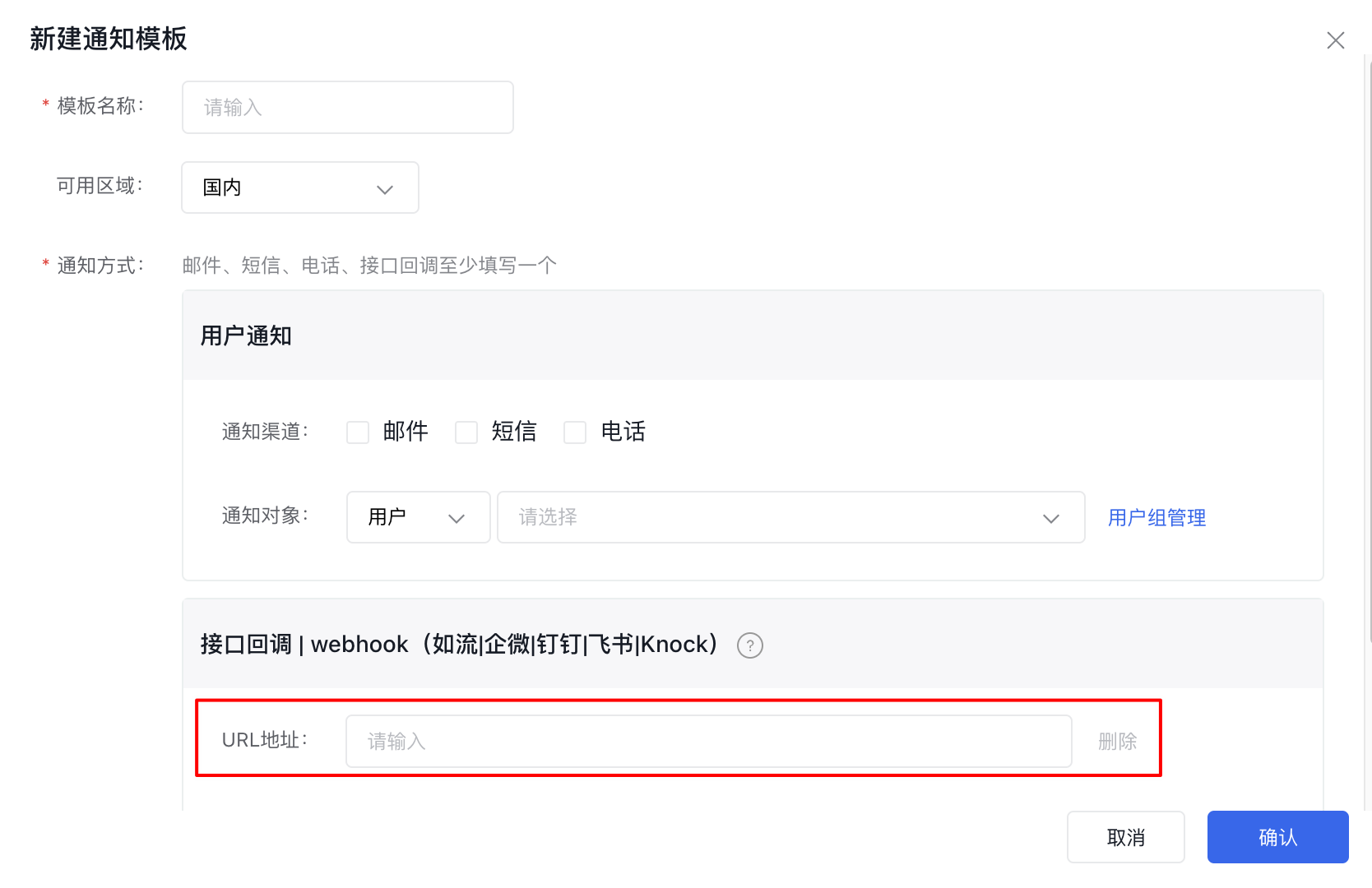
- Use webhooks to push messages to office apps like WeCom, DingTalk, and Infoflow.
- Example 1: Push to WeCom via webhook
- Sign in to WeCom and create a group
- Invite the WeCom bot into the group and copy the webhook address
- When configuring the alarm strategy, add a new alarm action by entering the webhook address in the Alarm Callback Address field
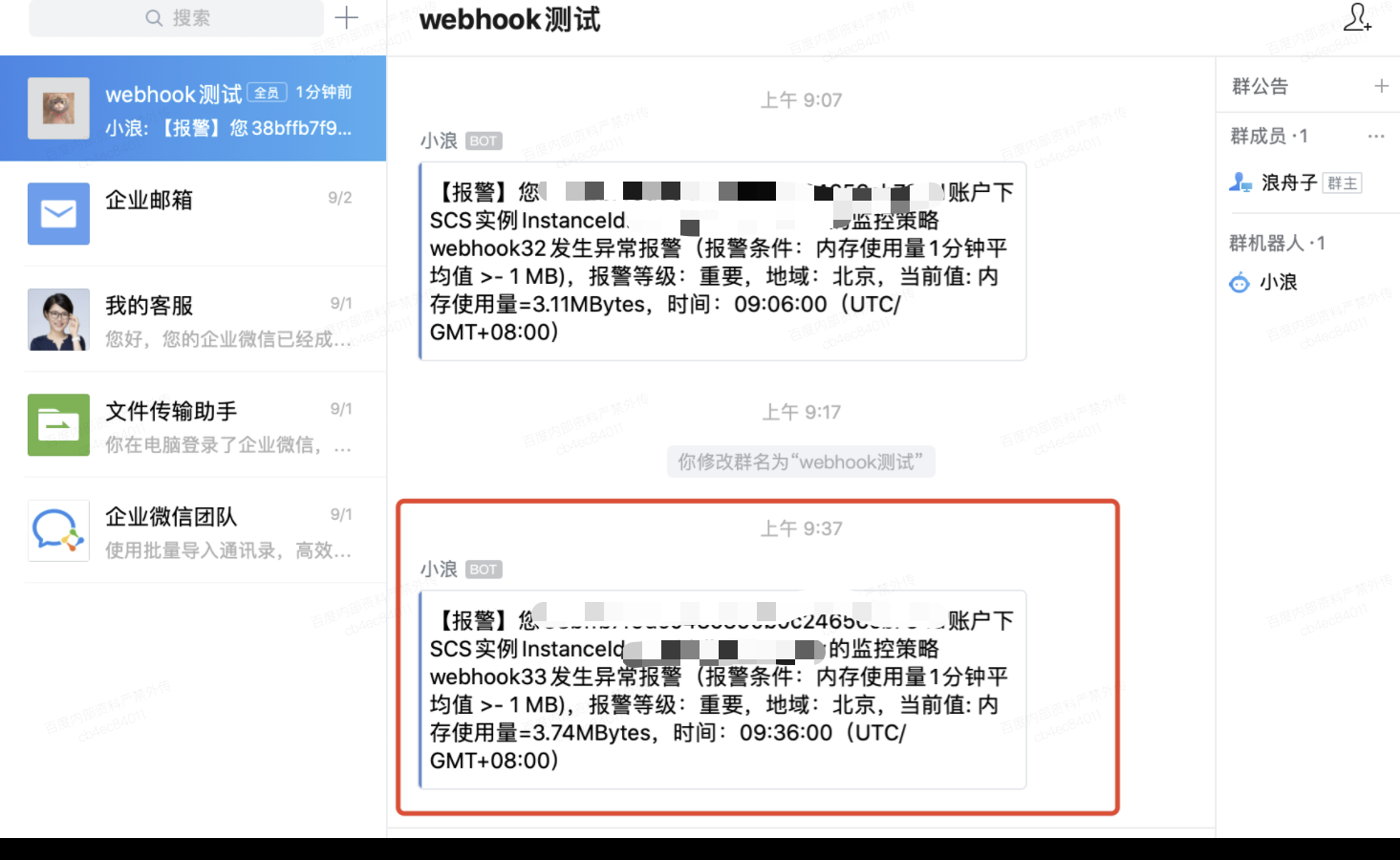
- If an alarm is triggered, the pushed alarm message will be promptly received via WeCom
- Example 2: Push to Infoflow via webhook
- Create a bot in the corresponding group and obtain its webhook address
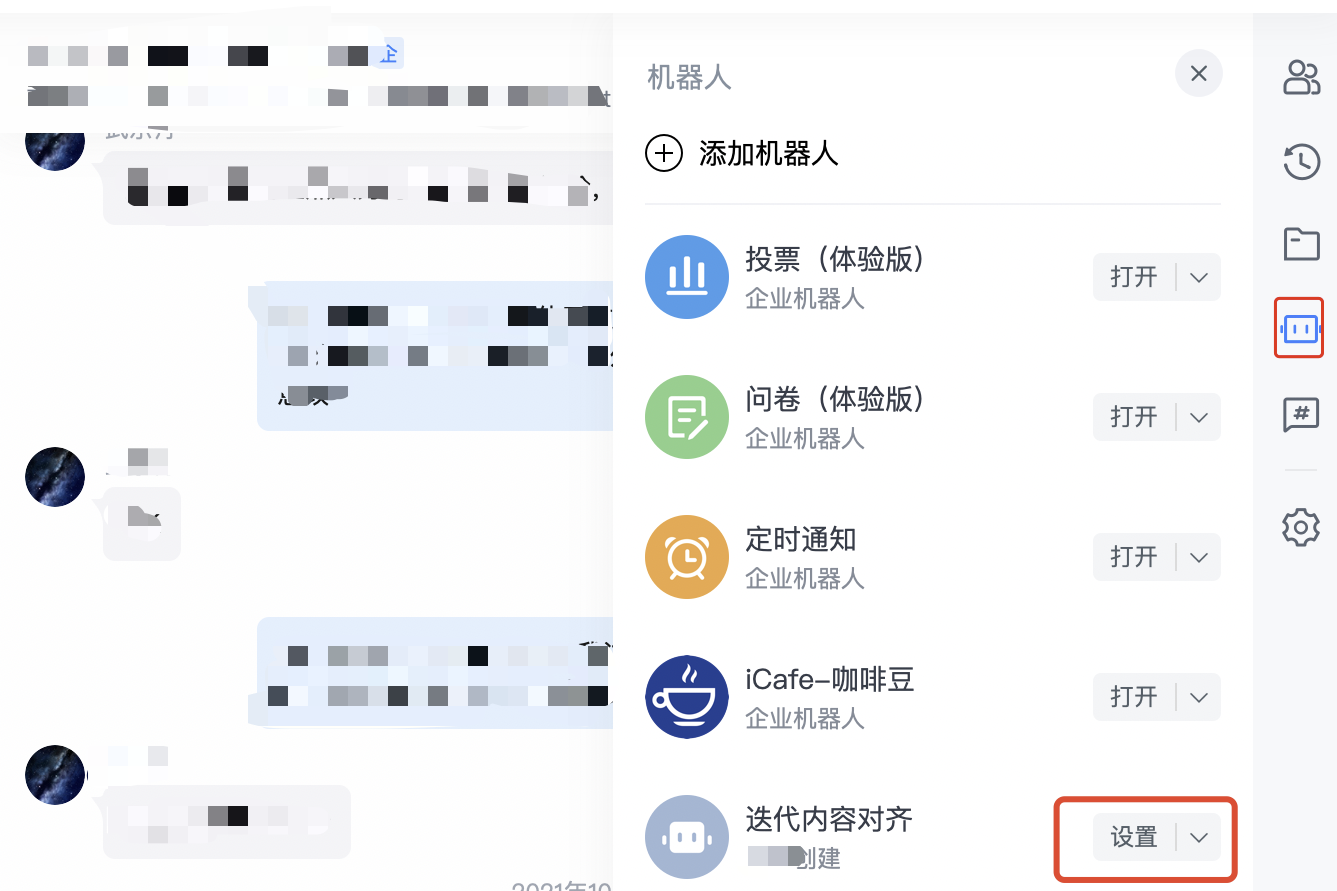
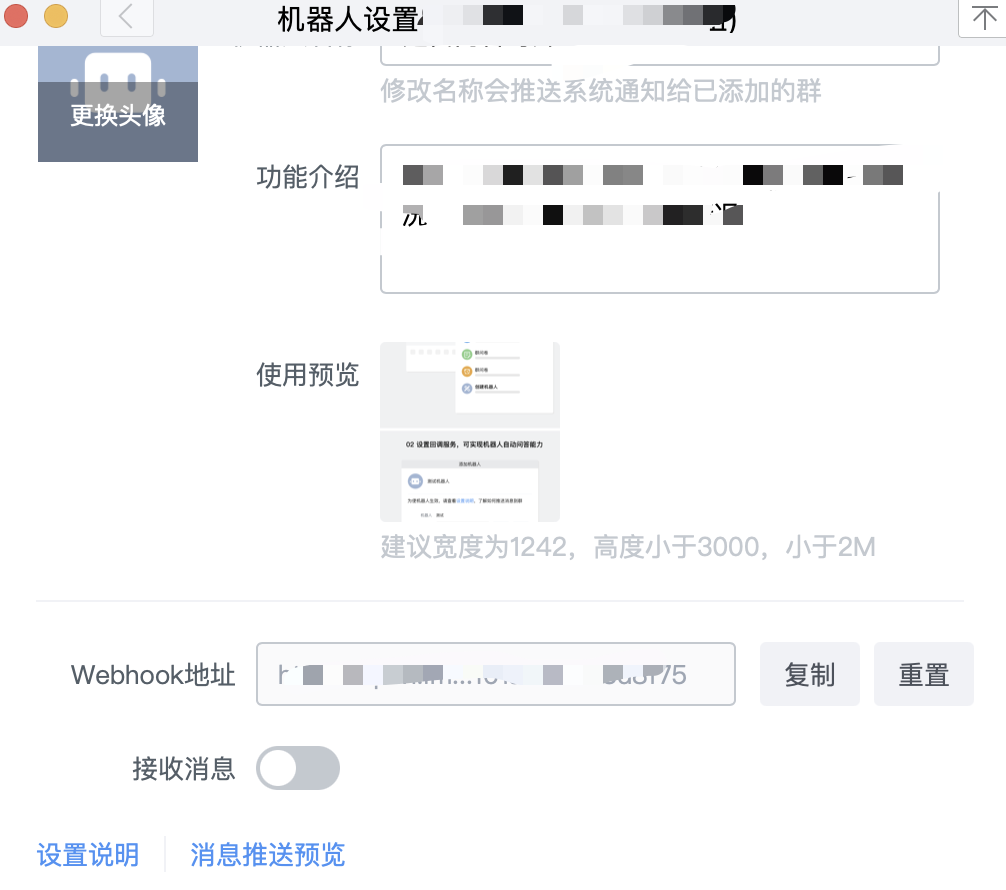
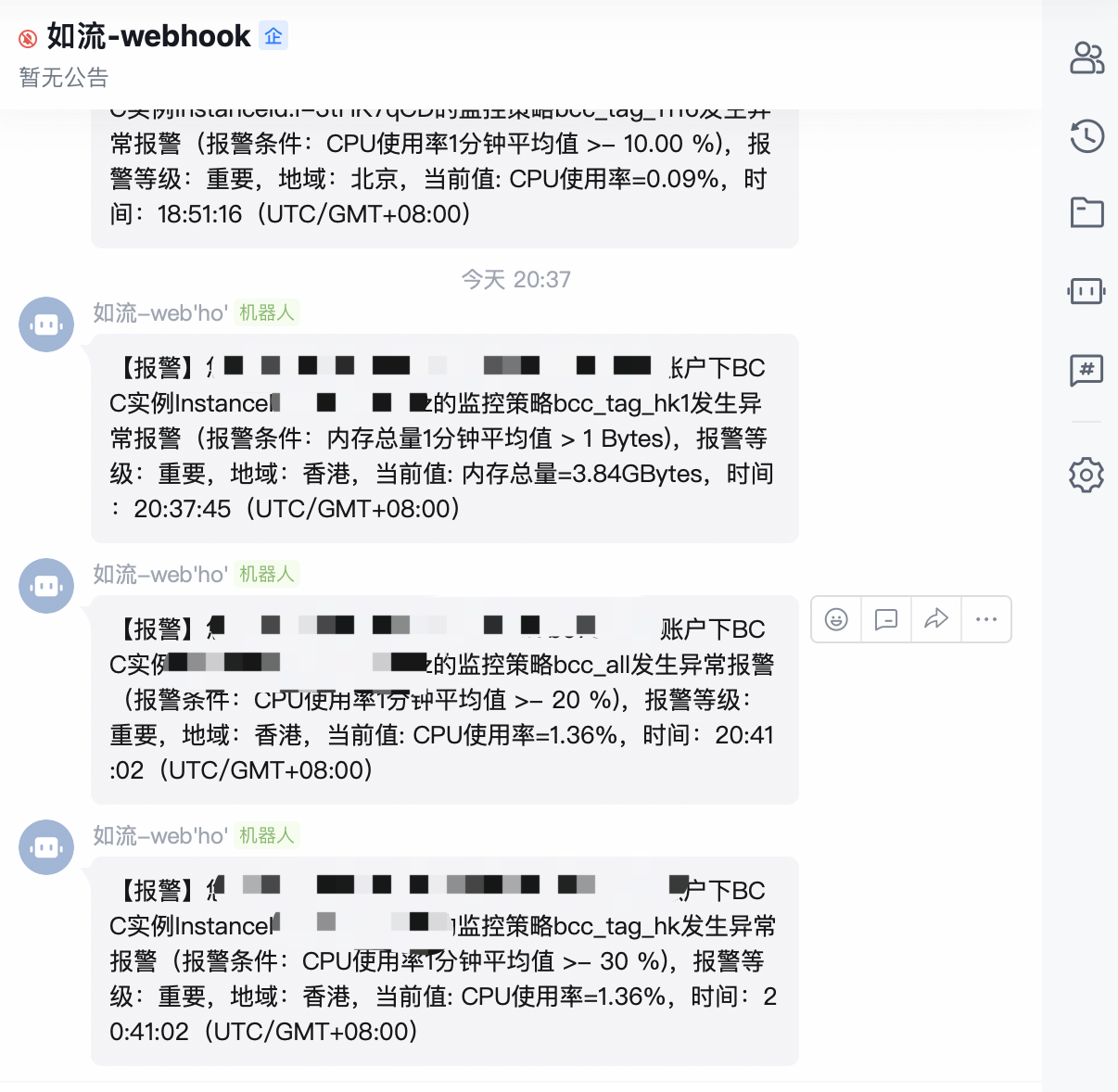
- Similar to the above operations, if an alarm is triggered, the pushed alarm message will be promptly received via Infoflow
- Example 3: Pushing to DingTalk via webhook
- Log in to DingTalk, open the group chat that needs to receive alert notifications, and add a group bot.
- Complete the form and select the "Custom Keywords" option in the Security Settings module. It is recommended to use "Alarm" as the keyword.
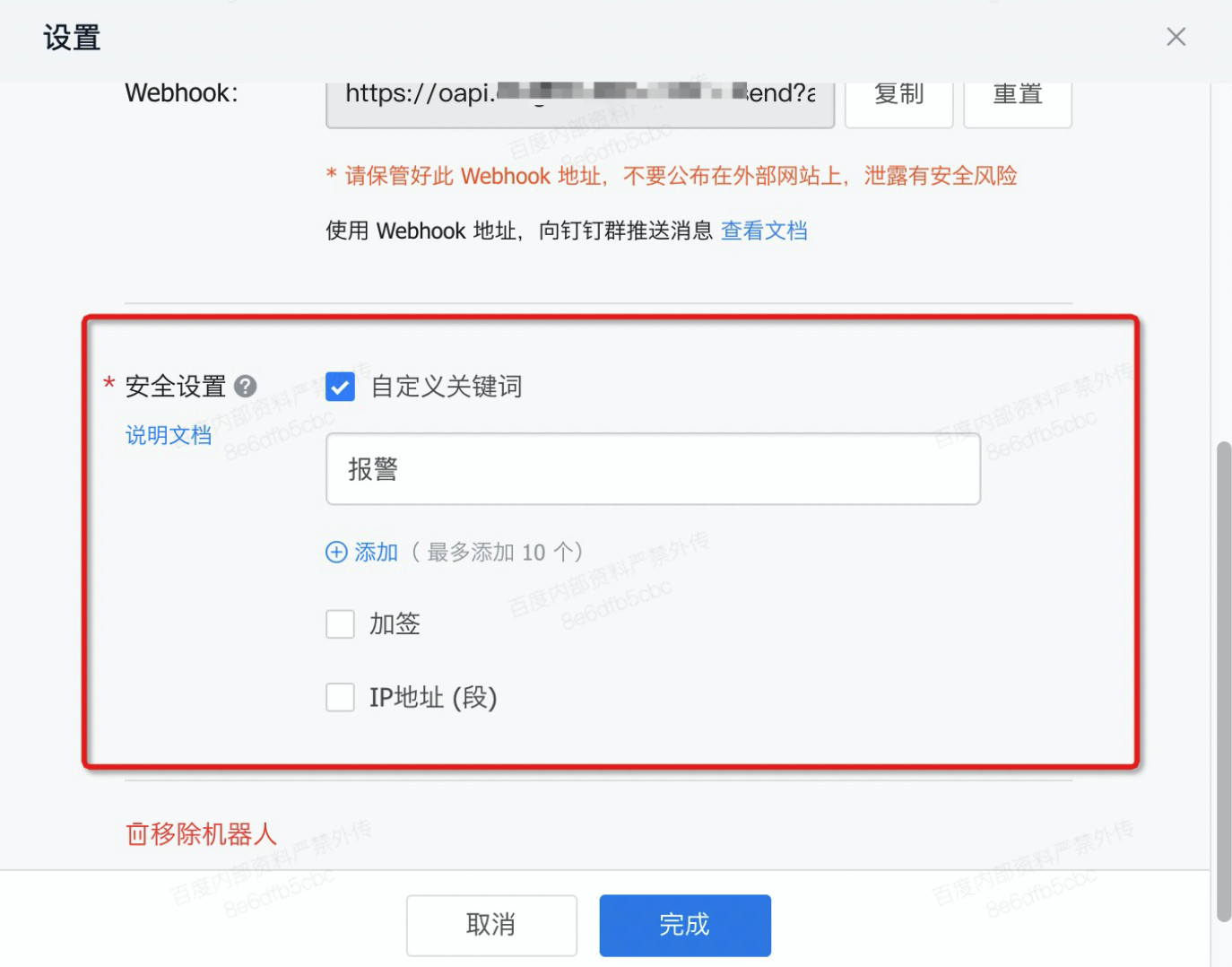
Note: Enable the custom keywords option, input up to 10 keywords, and ensure that messages include at least one keyword for successful delivery. For instance, if a custom keyword like "Alarm" is added, all messages sent by this bot must include the word "Alarm" to ensure delivery.
- After adding a DingTalk bot, copy the webhook address and input it under Alarm Callback as per the outlined steps.
- Once configured successfully, alarm notifications will be sent to the DingTalk group when triggered.