Script monitor
Last Updated:2025-11-14
Script monitor
Script monitoring: Enables users to collect custom metrics via scripts, supporting alarm configuration and alerting for script-based metric monitoring.
Create script monitor task
- Go to the Application List page, then click an application name to open its Details page.
- In the left navigation panel, click on the Monitor Task tab to navigate to the Monitor Task page.
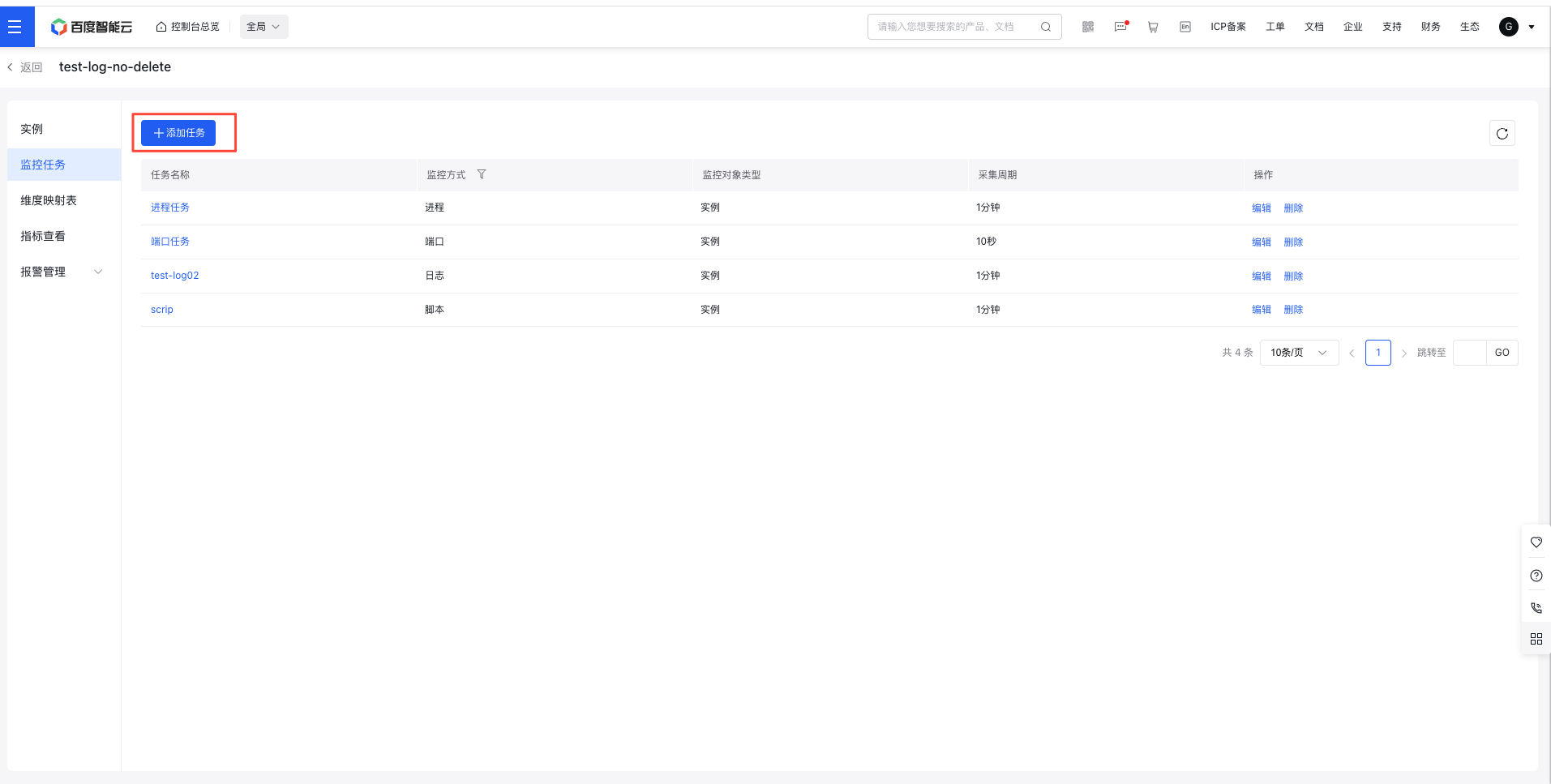
- On the Monitor Task page, click the Create Task button to access the Create Monitor Task page.
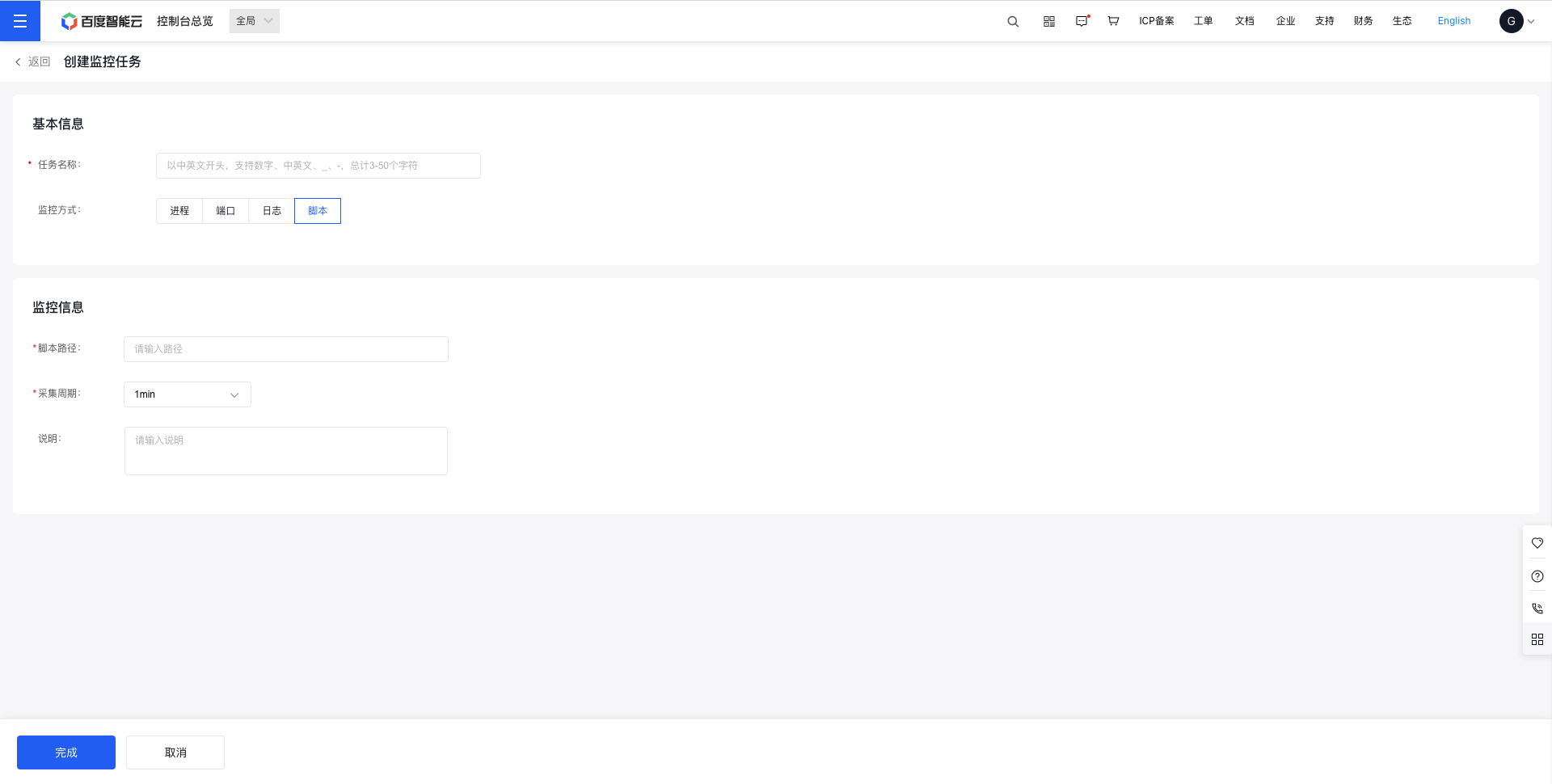
- On the Create Monitor Task page, fill in the task's basic and monitoring information, and then click Finish to complete the creation.
View script monitor data
- Go to the Application List page, then click an application name to open its Details page.
- In the left navigation bar, select the Create Task tab to access the Monitor Task page.
- On the Monitor Task page, click the name of a monitoring task to open the corresponding Details page.
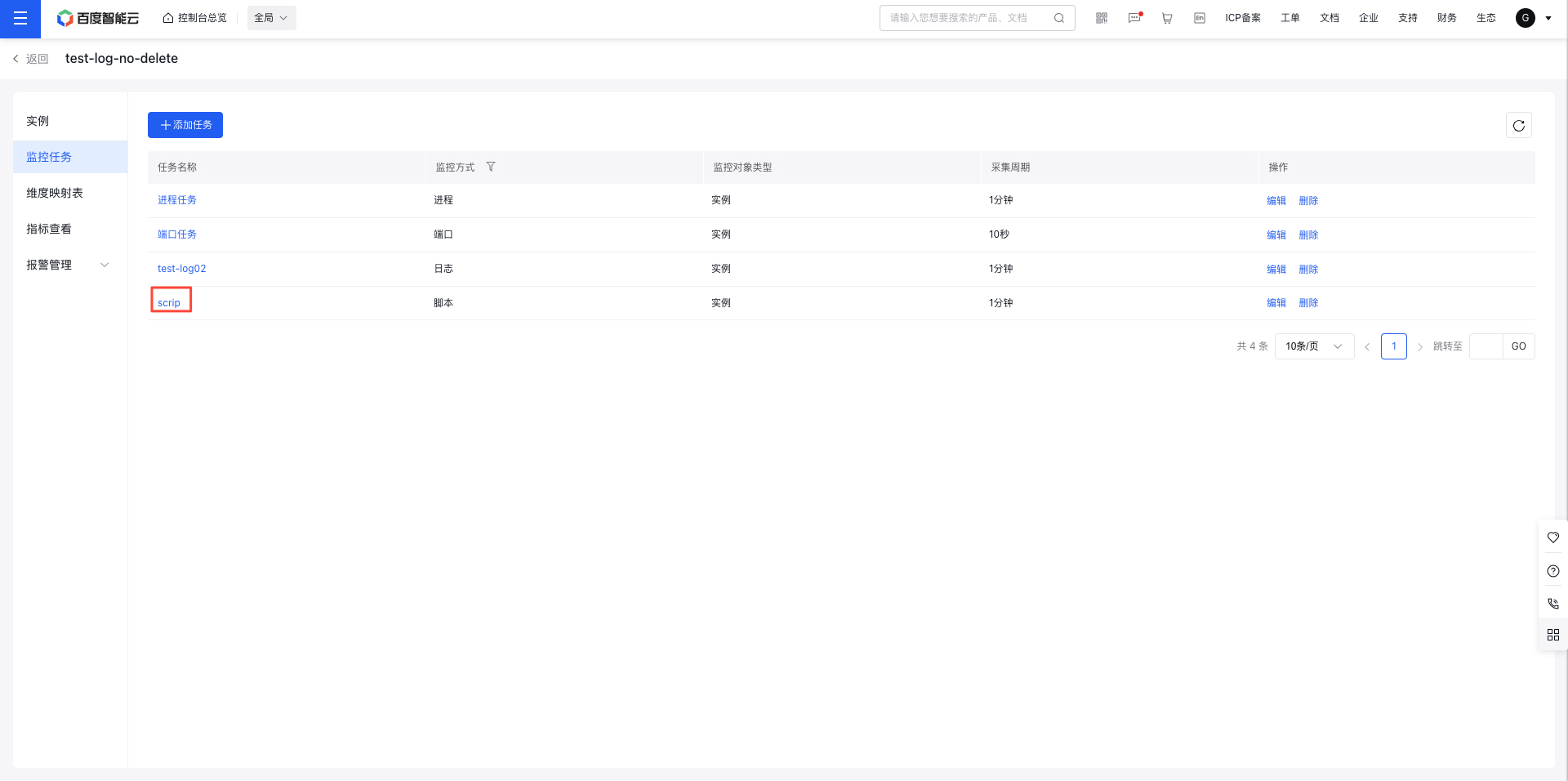
- Check the monitoring data for the task on the corresponding Details page.
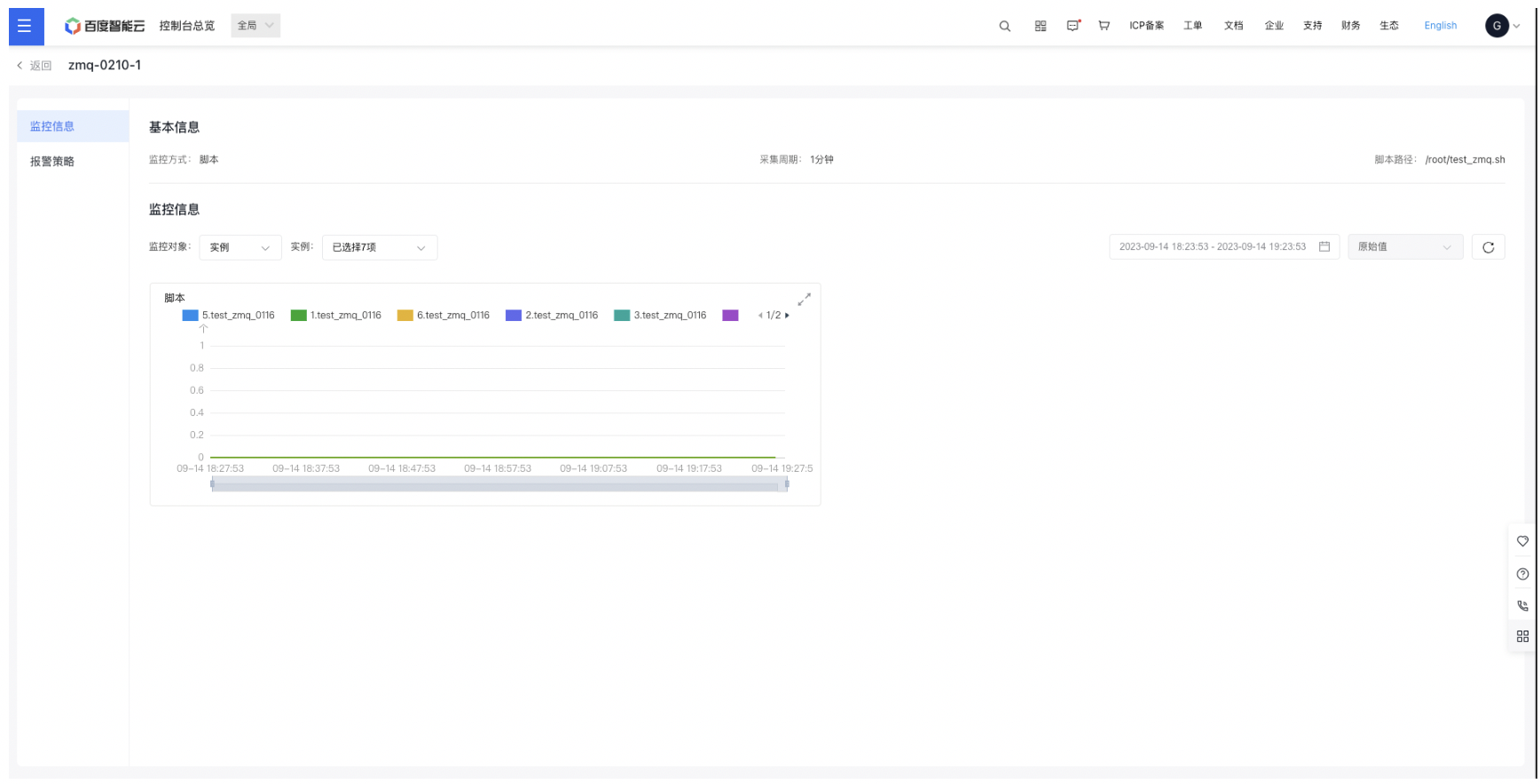
Configure alarm strategy for script task
- Go to the Application List page, then click an application name to open its Details page.
- In the left navigation bar, click the Monitor Task tab to access the Monitor Task page. Then select the name of a script monitor task.
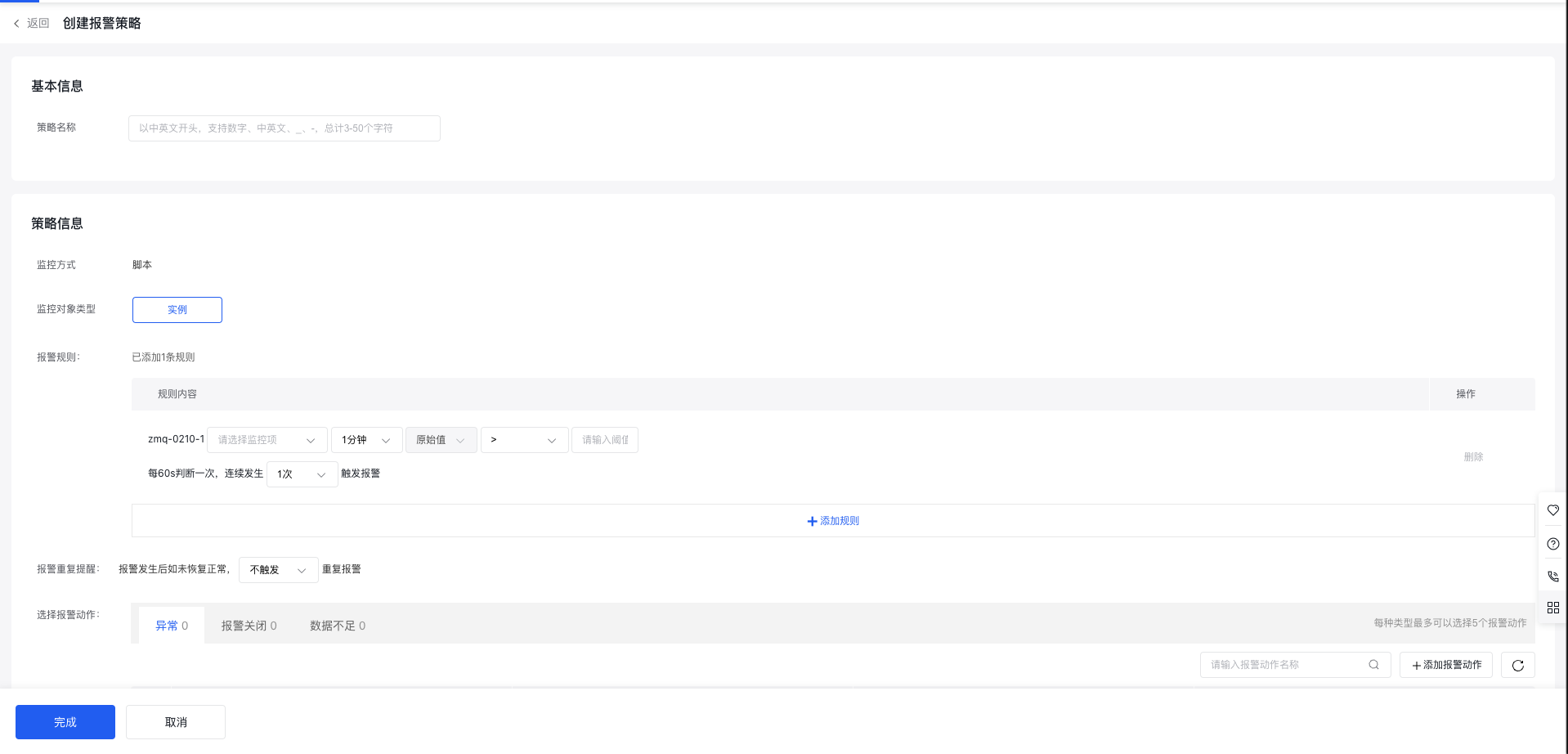
- Go to the Script Task page, choose Alarm Strategy, and view the list of alarm strategies for the current script task. Click Create Strategy to define a new alarm strategy for the active script task.
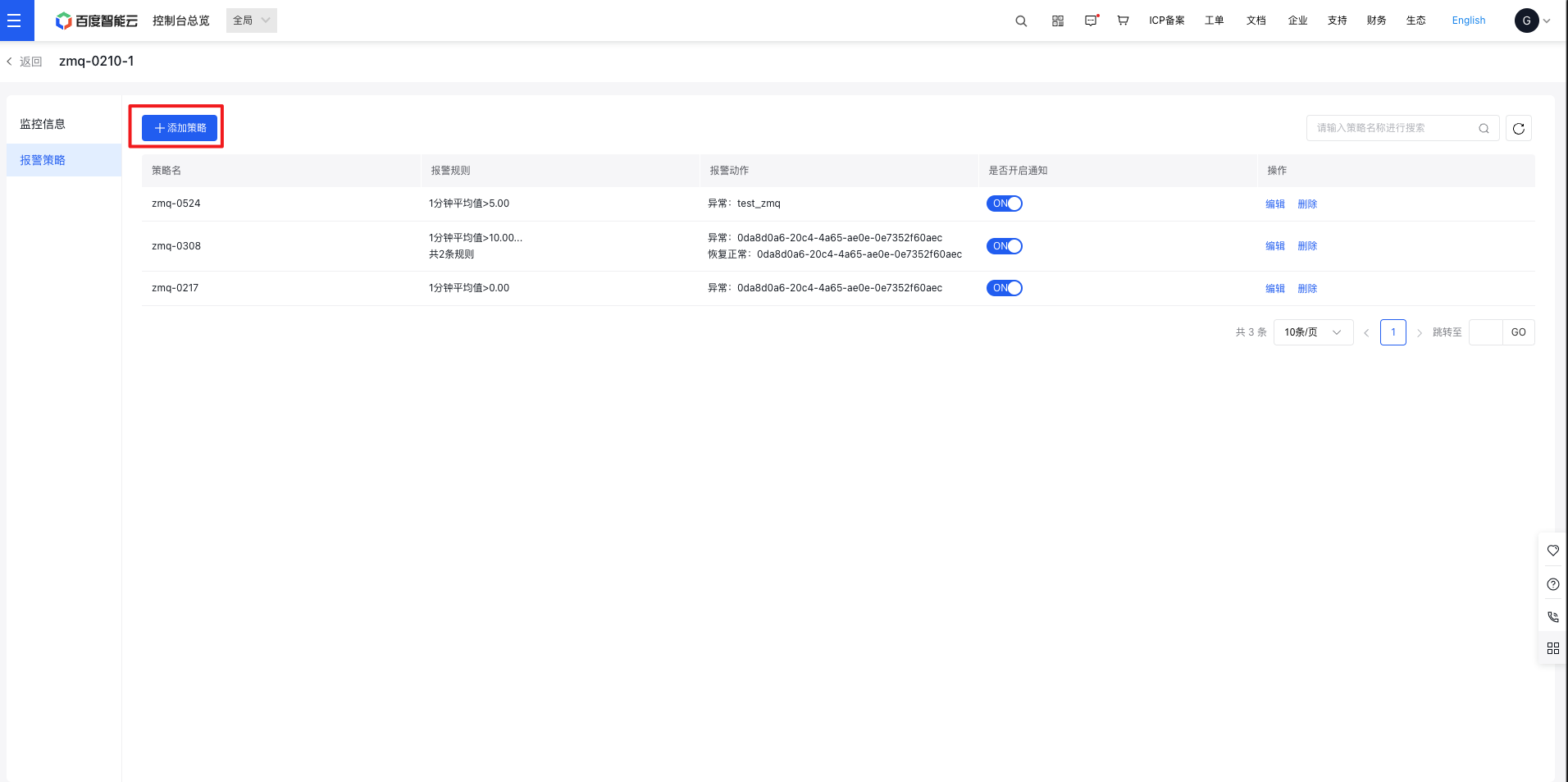
- Complete the alarm strategy configuration form and click Save to finish creation