Process monitor
Last Updated:2025-11-14
Process monitor
Process monitor tracks the operational status of processes within application instances in real-time, monitoring CPU, memory, disk, and other resource usage. You can view monitor metrics in real-time via monitor trend charts, configure alarm strategies, and review alarm history
Create process monitor task
- Go to the Application List page, then click an application name to open its Details page.
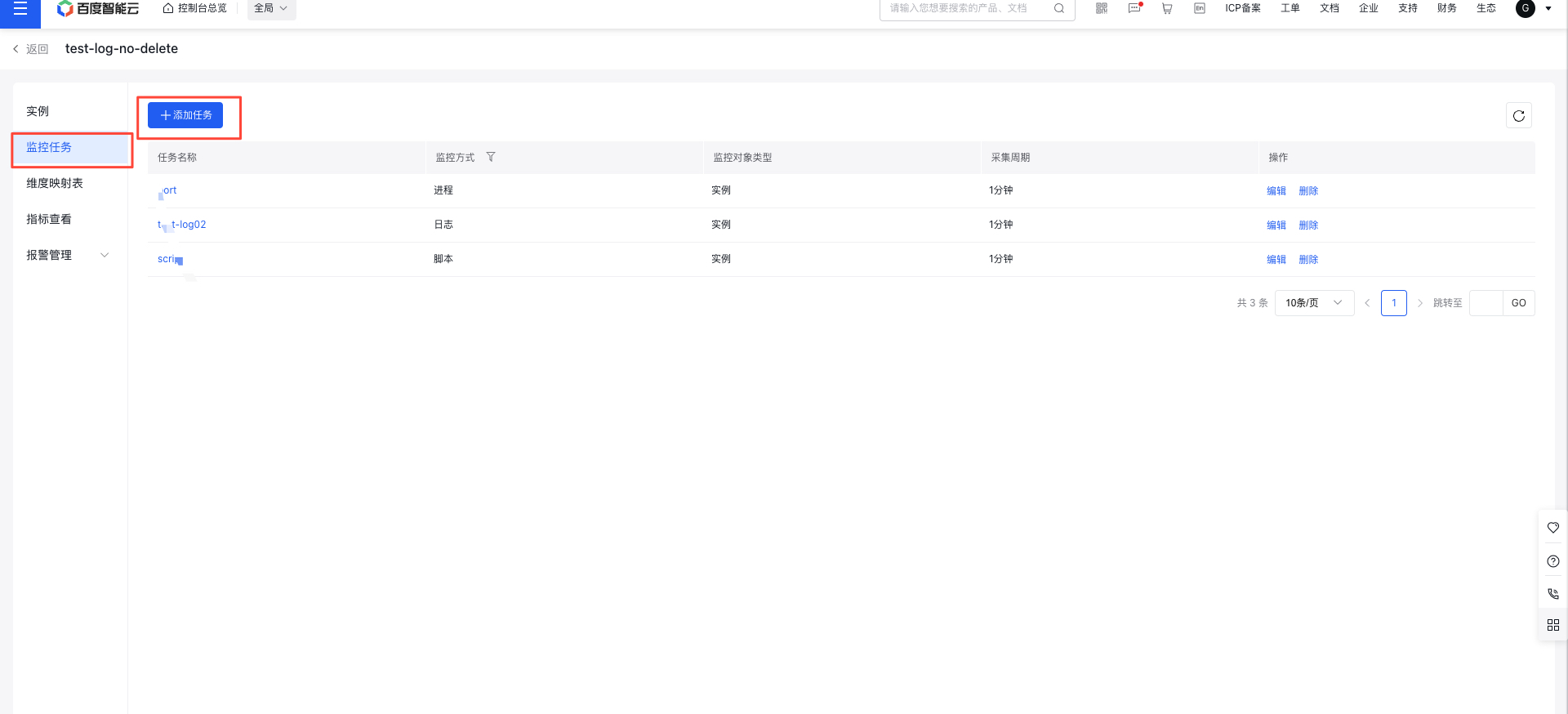
- In the left navigation panel, click on the Monitor Task tab to navigate to the Monitor Task page.
- On the Monitor Task page, click the Create Task button to access the Create Monitor Task page.
- On the Create Monitor Task page, fill in the task's basic and monitoring information, and then click Finish to complete the creation.
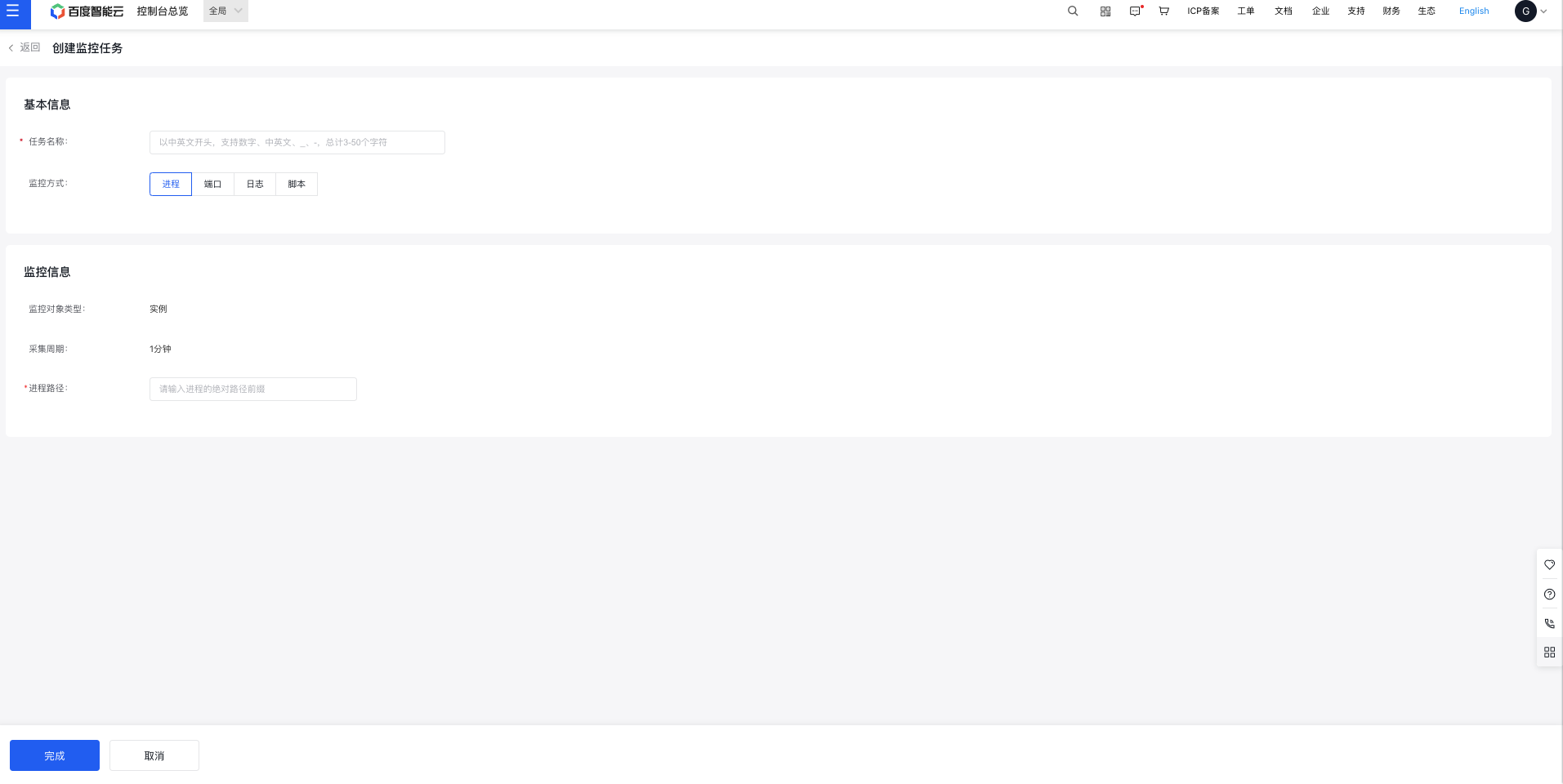
Process path configuration:
- Please enter the absolute path of the executable file, e.g., "/home/work/bcm/nginx/sbin/nginx"
Java and general interpreted language processes typically produce the following output when executing the ps command:
/usr/bin/java6/java /home/xxx/atest /usr/bin/java6/java /home/xxx/btest
- To monitor the corresponding process, specify the interpreter path and add a unique identifier string in the parameter string, for example: /usr/bin/java6/java atest /usr/bin/java6/java btest
View process monitor data
- Go to the Application List page, then click an application name to open its Details page.
- In the left navigation panel, click on the Monitor Task tab to navigate to the Monitor Task page.
- In the Monitor Task page, click on the name of a process monitoring task to open its corresponding details page.
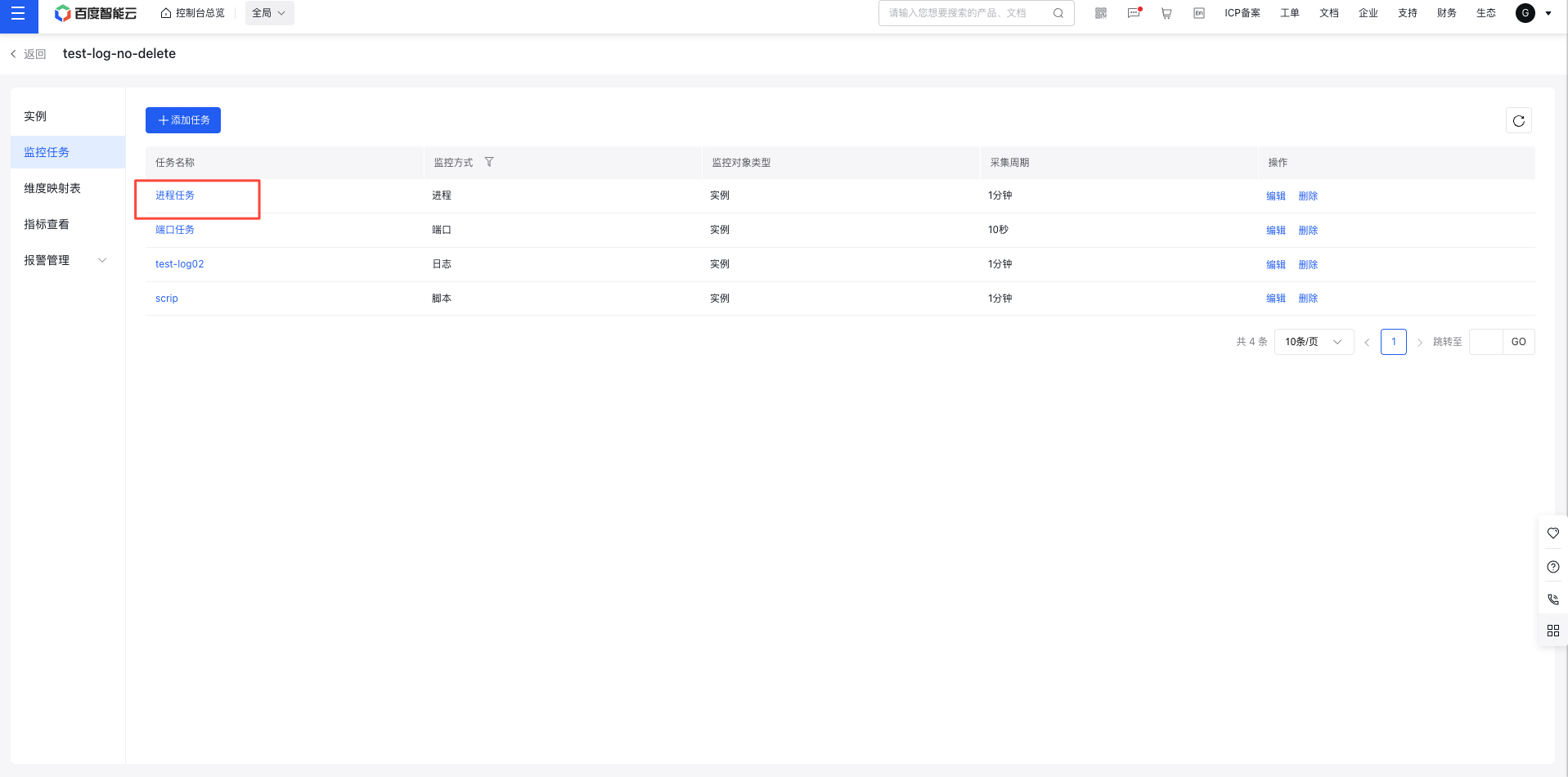
- Check the monitoring data for the task on the corresponding Details page.
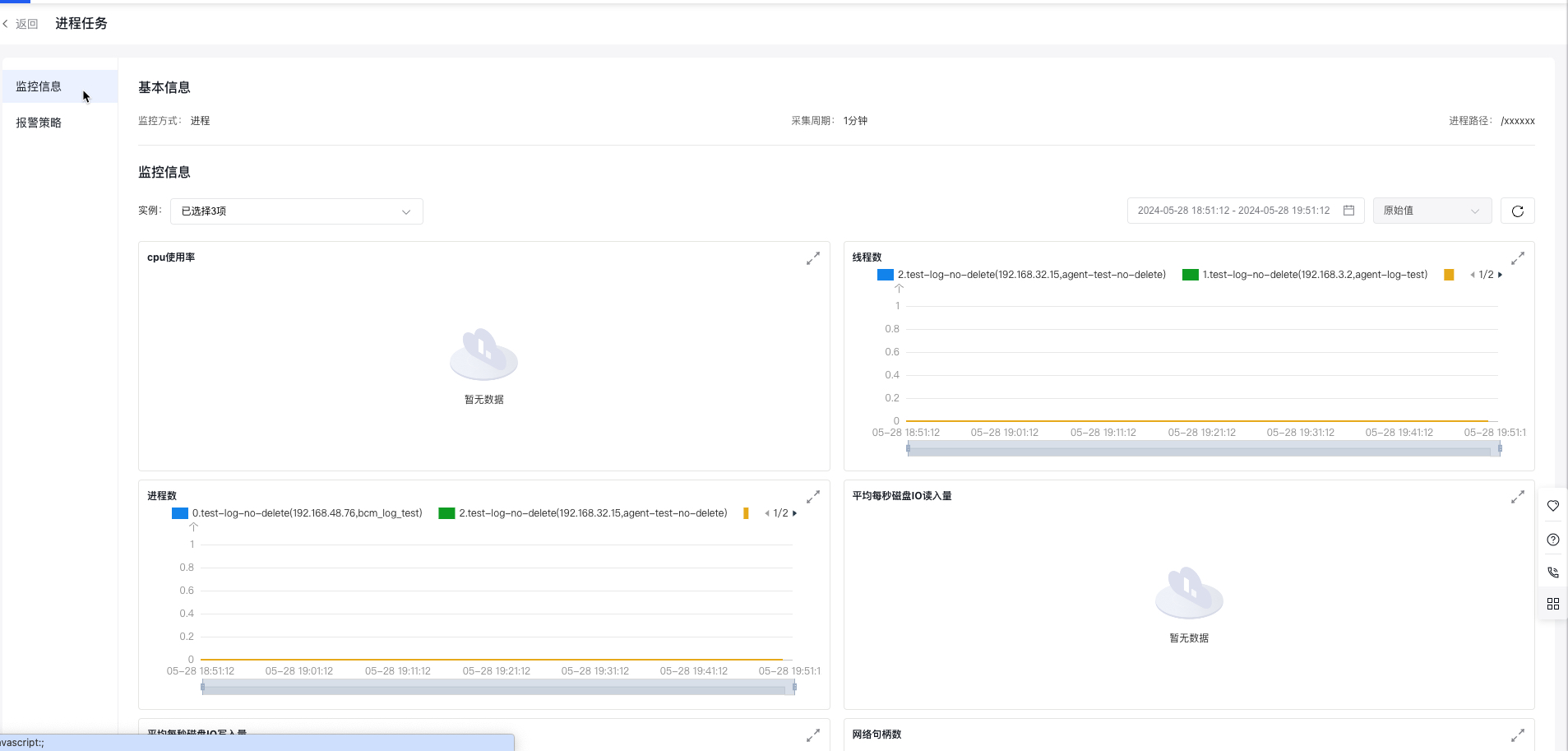
Configure alarm strategy for process task
- Go to the Application List page, then click an application name to open its Details page.
- In the left navigation bar, click on the Monitor Task tab to access the Monitor Task page. Then, click on the name of a process monitoring task.
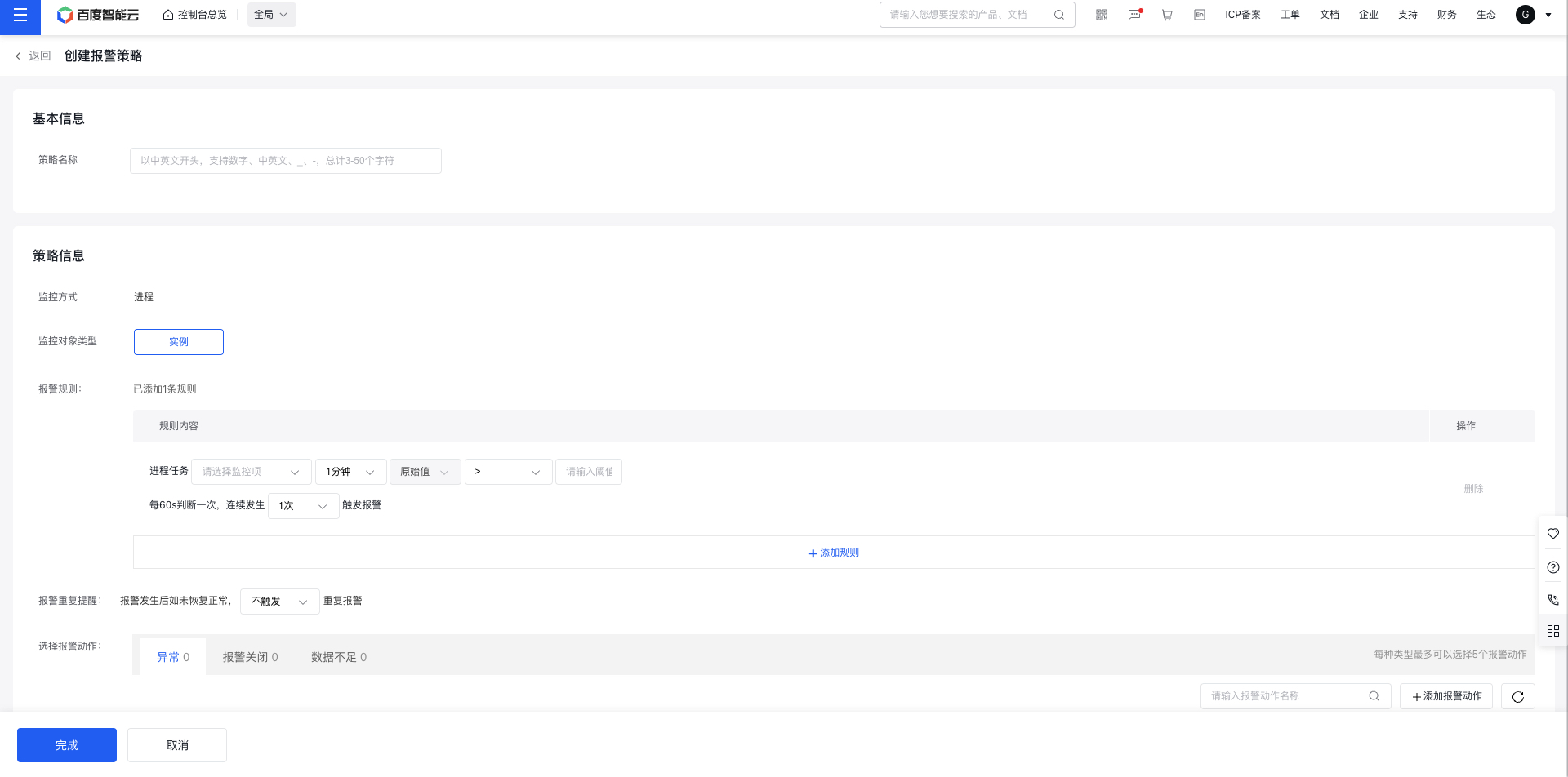
- Navigate to the Process Task page, select Alarm Strategy, and view the list of alarm strategies associated with the current process task. Click Create Strategy to define a new alarm strategy for the task.
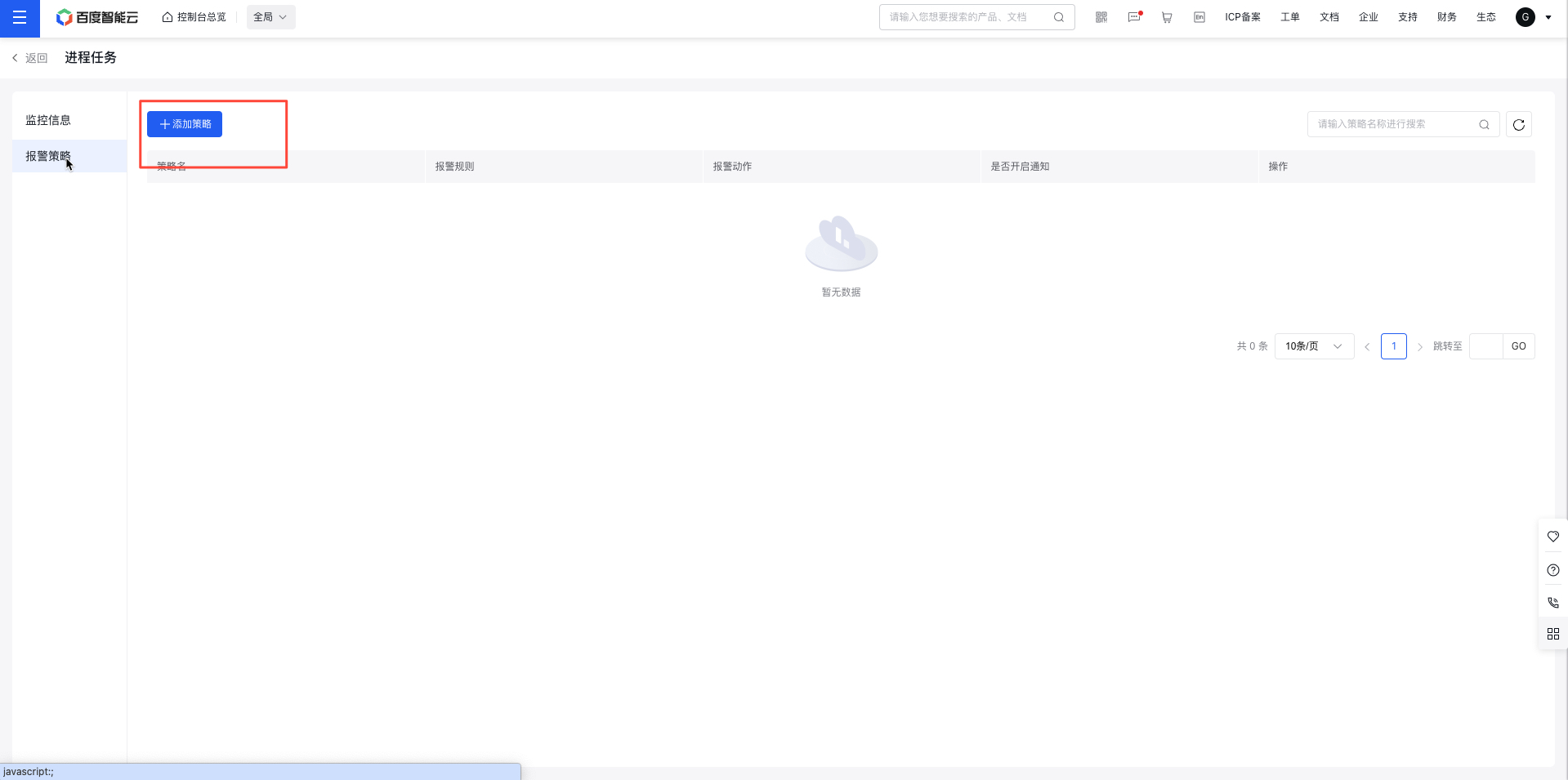
- Complete the alarm strategy configuration form and click Save to finish creation