
Install Agent on Host
The agent is a service component provided by log service and installed on hosts. After installation, the agent will listen to specified files, collect log file contents, and delivery them to the destination address. The agent currently supports 64-bit Linux and Windows systems and only supports collecting UTF-8 encoded files. If you encounter installation issues, please submit a Ticket for assistance.
Installation steps
- Sign in to Baidu AI Cloud Console search for Baidu AI Cloud Log Service (BLS), and access the log service page.
- Users must activate Baidu AI Cloud Log Service (BLS) before using it for the first time. Click the Activate Service button to proceed.
- Click on Agent in the left navigation menu, then select Agent Installation to access the installation page.
- The system automatically generates a certification token and creates an installation command linked to this token and operating system. Use the command to install the log service agent on your host. BLS supports CentOS, Ubuntu, and Debian systems. Select your OS and click the Copy button to copy the installation command.
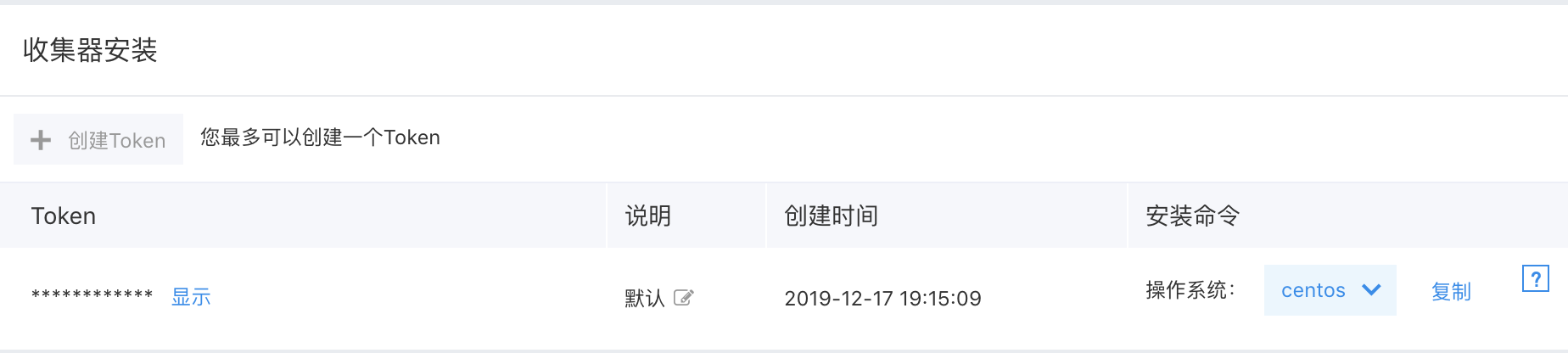
Note: If the Copy button for the installation command is not displayed, please refer to FAQ: Why is the Copy button for the installation command not displayed in the browser?
Note: Installation commands vary by regions. Please obtain the accurate installation command from the console
Paste the installation command into a Linux shell or Windows PowerShell to execute it.
Examples and explanations of installation commands.
Linux environment:
- Command example
bash -c "$(wget -qO - <repo address>)" '' -o <token value> -s <OS version> -p /opt -u rootIn this command,
Note: Do not manually modify the above parameters
-p specifies the directory for installing the agent, with /opt as the default. After installation, a logbeat directory will be created in the chosen directory. If a logbeat directory already exists there, the script will prompt whether to overwrite the existing directory (y/n). If you opt not to overwrite, select No (n), then reinstall and specify a different installation directory.
-u specifies the local user, with the default set to root.
You can adjust these two parameters to specify the installation directory and the local user.
Note: The last parameter specifies the local user running the agent, which may differ from the user executing the installation command. Difference: One user installs the agent (e.g., root), and the other user starts the agent (e.g., work).
Note: Multiple agents can be installed on the same machine by specifying different installation directories. These agents operate independently, but only one agent should be installed with a token logically. It is allowed to install multiple agents on a single machine, for use by different users.
- Log in to your host and execute the installation command under root permission. At this point, if the local execution account does not exist, the installation script will create one and use it to start the agent. Execute installation commands with root permission. The script will add system service commands:
service logbeatd [start/stop/status/restart]and service to start automatically at boot. Service commands can be used to start, stop, and view processes. -
You can install the agent with a non-root user as well. Keep in mind that unlike the root user installation, the installation script will not add the service command or enable the service to start automatically at boot. To start or stop logbeat at this stage, use the start.sh and stop.sh scripts located in the bin directory of the logbeat installation folder. These scripts must be run by the user operating the process.
Note: After starting the agent with your designated local account, ensure the account has read access to target files and read/execute permissions for all parent directories.
- Follow the on-screen prompts to confirm successful agent installation.
Windows environment:
- Command example
powershell -c "(New-Object System.Net.WebClient).DownloadFile('<repo address>', 'install-logbeat.bat')" ; start -FilePath install-logbeat.bat "<token>"In this command,
- After installation, a logbeat service named: "Baidu Logebat Service" is registered in the system.
- Under the installation directory, scripts such as start.bat/stop.bat/status.bat/install.bat/uninstall.bat are available for starting/stopping, viewing, registering, and uninstalling the service.
- Follow the on-screen prompts to confirm successful agent installation.
- Additionally, Windows supports custom installation via zip packages. Refer to Windows System Zip Installation Method.
How to deploy tasks simultaneously during agent installation
If you wish to package the agent provided by log service into an image file for rapid deployment of servers with the same configuration, please create a transmission task in advance and add task parameters during installation, as detailed below:
- In the Agent Installation page, select the corresponding OS and copy the installation command
- Find and select the transmission tasks you want to pre-configure in the transmission task list page, and record their task IDs
- Add these task IDs as task parameters at the end of the installation command in the following format:
Linux environment
bash -c "$(wget -qO - <repo address>)" '' -o <token value> -s <OS version> -p /opt -u root -t task1ID,task2ID,task3ID...Description:
a) The parameter indicator for the task ID list is -t
b) Multiple tasks are separated by “,” without spaces
c) Only support transmission task IDs created under your account; you cannot add transmission task tasks created by others
d) Incorrect transmission task IDs do not affect normal operation of the agent
Example:
Install the agent on an Ubuntu host and deploy two transmission tasks
bash -c "$(wget -qO - <repo address >)" '' -o cdda****5880 -s ubuntu -p /opt -u root -t 3482****4b6a,b5b6****2c93Windows environment
powershell -c "(New-Object System.Net.WebClient).DownloadFile('<repo address>', 'install-logbeat.bat')" ; start -FilePath install-logbeat.bat "<token> task1ID_task2ID_task3ID..."Description:
a) The task ID list follows the token parameter, and both of them are included within the same quote
b) Multiple tasks are separated by “,” without spaces
c) Only support transmission task IDs created under your account; you cannot add transmission task tasks created by others
d) Incorrect transmission task IDs do not affect normal operation of the agent
Update the agent
Linux environment
Update it via script by executing the bin/update.sh script in the agent root directory. The script can take a parameter [version], for example:
sh bin/update.sh [latest/1.1.1]If left empty, it will default to the latest version, meaning the agent will automatically update to the most recent version.
Windows environment
The agent must be uninstalled before reinstalling the latest agent
Uninstall the agent
Linux environment
Step I: Stop the agent process: service logbeatd stop; or execute /opt/logbeat/bin/stop.sh;
Step II: Remove the agent directory: rm -rf /opt/logbeat.
Windows environment
Step I: Stop the agent process: stop.bat;
Step II: Delete the agent directory: rm C:\Program Files\Baidu\Logbeat.
Windows system ZIP installation method
- Download ZIP package
- Unzip the package to a custom directory
- Modify configuration files logbeat.yml
management:
  enabled: true
  token:
  bls_server_address:
  tasks: [ ]
Fill in the token for specifying agent installation location in the console at token;
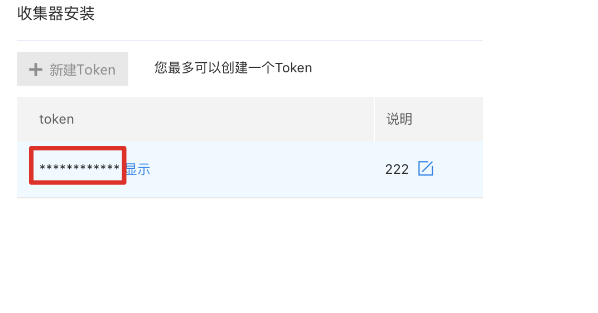
Fill in the corresponding region’s endpoint at bls_server_address. The endpoints of each region are as follows:
| region | endpoint |
|---|---|
| Beijing | https://bls.bj.baidubce.com:8185 |
| Guangzhou | https://bls.gz.baidubce.com:8185 |
| Suzhou | https://bls.su.baidubce.com:8185 |
| Baoding | https://bls.bd.baidubce.com:8185 |
| Wuhan | https://bls.fwh.baidubce.com:8185 |
| Hong Kong | https://bls.hkg.baidubce.com:8185 |
-
Register service
logbeat.exe -service-install
-
Start services
logbeat.exe -service-start