
Management alarm strategy
Function overview
Set up alarms for error logs, as well as system and application metrics, to proactively detect anomalies in systems and applications.
Create Alarm Strategy
Log in to Baidu AI Cloud, navigate to Log Service, and click
Configure basic information
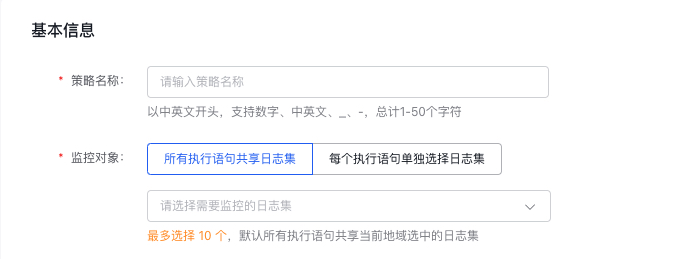
In "Basic Information," please enter the alarm strategy name. In "Monitor Object", select the LogStore to be monitored. Supports two methods: sharing LogStores across execution statements or selecting LogStores individually for each execution statement. The former supports selecting multiple LogStores (up to 10), while the latter is single-choice
Configure alarm rules
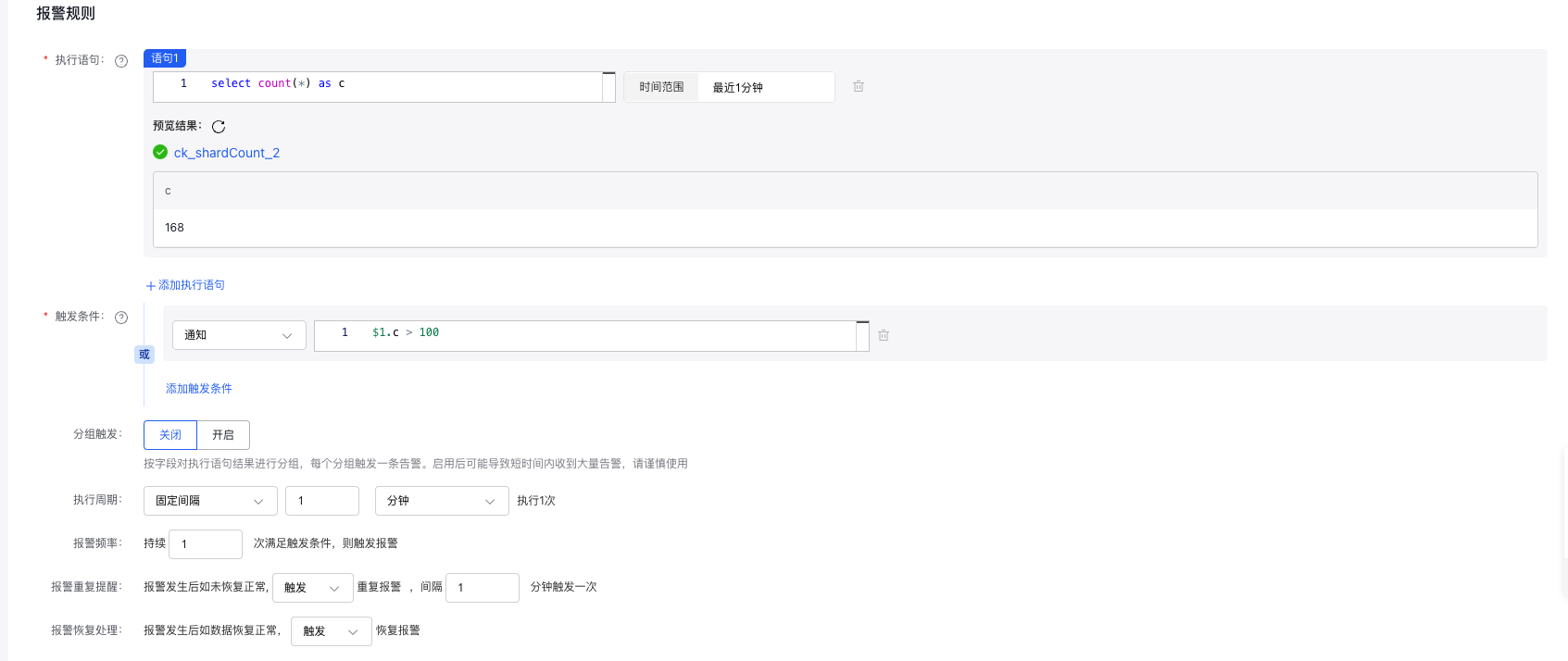
- Execution statement: Enter log search and analysis statements, and support the addition of multiple entries, 3 at most; support pure search statements
match ..., query statementsselect ..., and query statements with search conditionsmatch ...| select ... - Query time range: The time range specified for filtering logs in the query, with a maximum limit of logs from one day.
-
Trigger conditions: Alarms will be triggered when set conditions are met. There are three levels of alerts: notification, warning, and severe. Alarms corresponding to the respective levels will be triggered when their conditions are satisfied. Multiple alarms will trigger if multiple conditions are met at the same time.
- Trigger expression: For syntax rules, refer to Trigger condition expressions.
-
Group trigger: Enables group trigger functionality. When activated, if an execution statement results in multiple outcomes, these outcomes are grouped based on specified fields. Each group is assessed individually to determine whether it meets the alarm conditions; any group meeting the criteria will trigger an alarm independently.
- Grouping field: Choose fields from the results of the execution statement to use as grouping criteria. At least one field must be selected.
- When utilizing the group trigger function, a single alarm execution might generate a significant number of results that meet the trigger conditions, leading to numerous alarms (an alarm storm). Be sure to appropriately configure the group fields and trigger conditions.
-
Execution period: The frequency of monitoring task execution. The following two configuration methods are provided:
- Fixed frequency: Execute a monitor task once at a fixed interval (1 min - 24 h)
- Fixed time: Execute a monitor task once at a fixed time point. Time point range: 00:00 - 23:59
- Alarm frequency: Trigger an alarm when the condition is met consecutively for a specified number of times
- Repeated alarm: When an alarm is generated, support defining specific frequency and count for repeated notifications.
- Recovery alarm notification: Support triggering recovery alarm notification when the alarm is recovered
Configure alarm notification
- Alarm notification: You can select alarm notification template or directly configure an alarm callback Webhook.
-
Alarm notification template: BLS currently obtains BCM alarm notification template list. On the BLS side, you may select a notification template. To create a new one, click the "Go to BCM to Create Template" button to redirect to the BCM alarm notification template module. For editing, you should also select the corresponding template in the BCM alarm notification template module for editing. For specific configurations, refer to Alarm Notification Template

-
Alarm callback Webhook: Configure the alarm callback address. For specific configurations, refer to Alarm Callback.

- Alarm notification displays the original log content
You can configure to display original log content when sending alarm notifications. The specific configuration items are as follows:
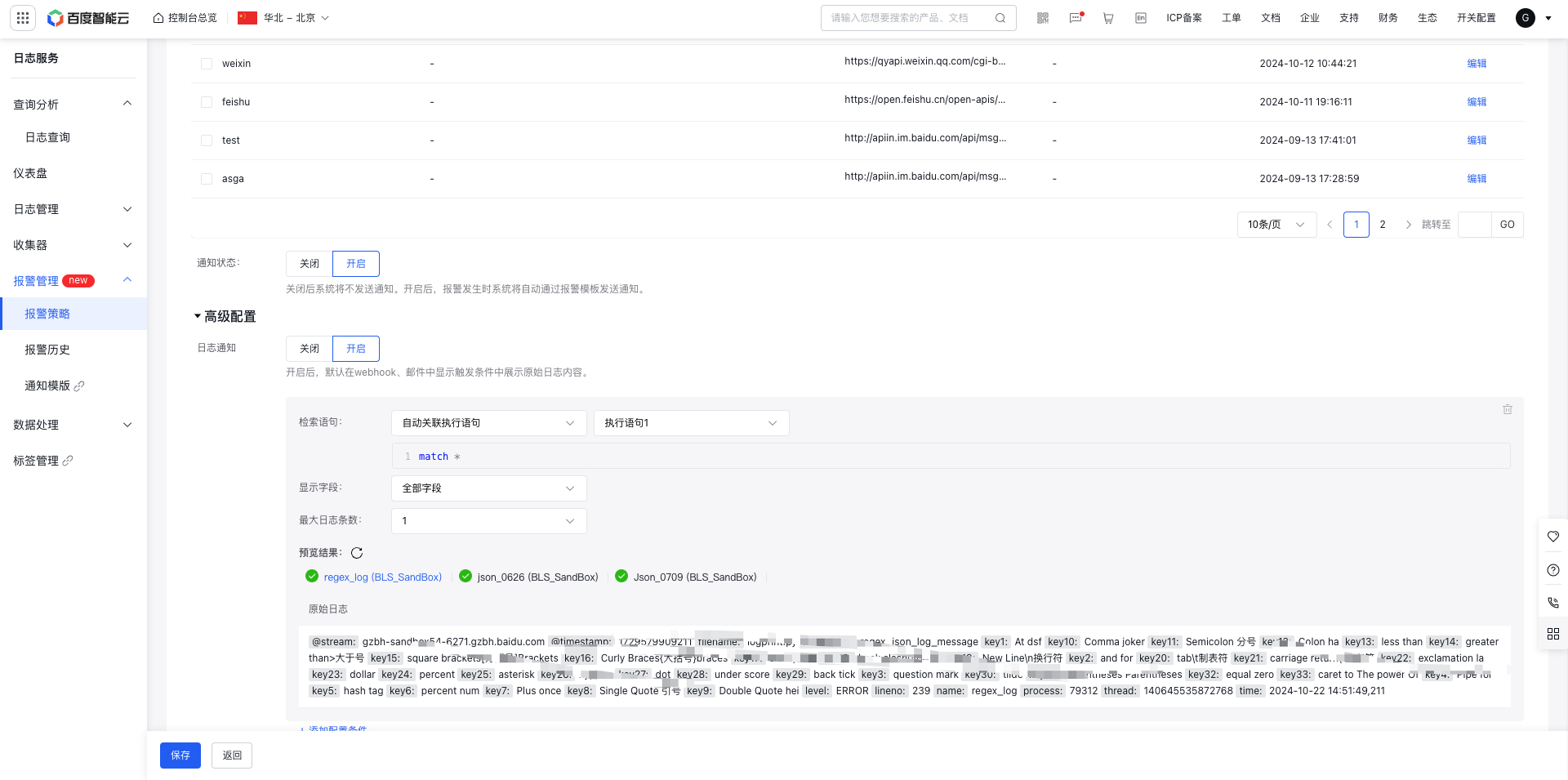
- Search statement: The execution statement can be either associated directly, or configured through custom selection of logstore
-
Display fields: Support configuration of displaying all fields or specified fields. For specified fields, you can directly select available fields or input additional fields.
- Available fields: Retrieve the fields from the latest 5 logs and all configured index fields (parent-child hierarchical index fields will be displayed in available fields while dynamic index child-level fields will not be displayed).
- Input fields: Allow custom input of fields, including parent-child hierarchical fields.

- Number of logs: Support configuring the number of logs displayed.
- Display effect: Show the original log content in email and webhook.
| Screenshot | |
|---|---|
 |
|
| Webhook |  |
Enable/disable alarm notification
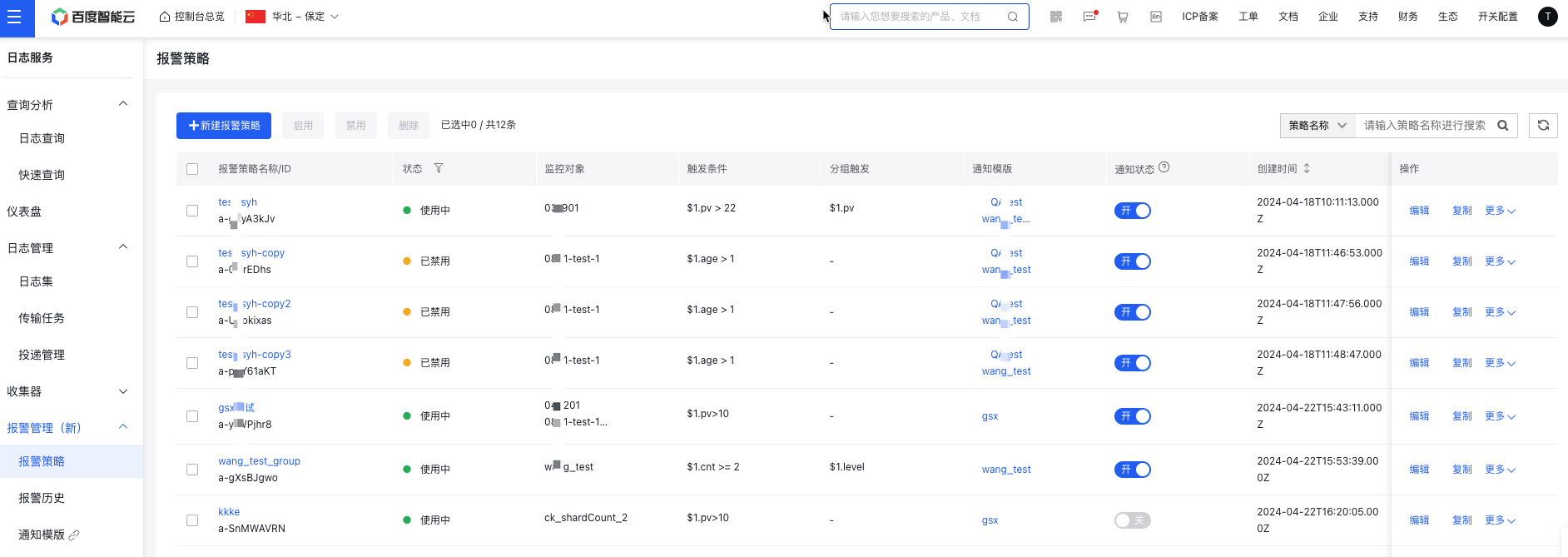
- Log in to Baidu AI Cloud, navigate to Baidu Log Service (BLS), and access the Alarm Strategy List page by clicking Alarm Management and Alarm Strategy in the left-hand menu.
- In the Notification Status column, ON means alarm notifications are active, while OFF means they are inactive.
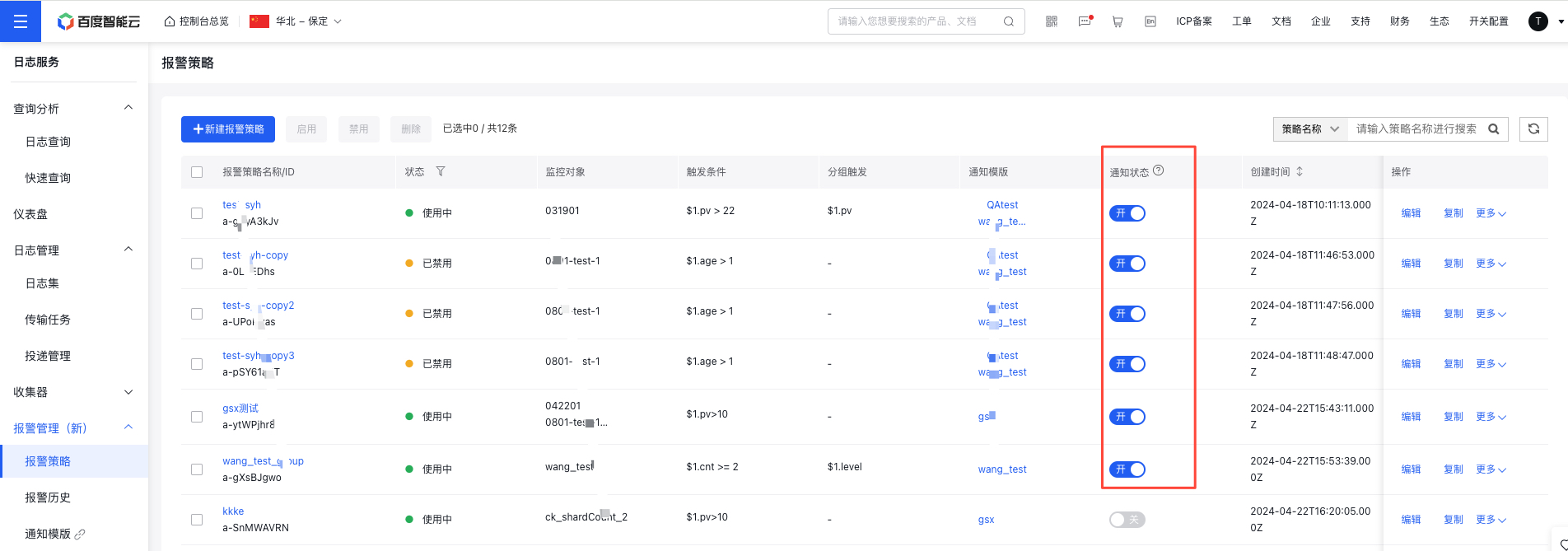
Notes: Disabling alarm notifications means you will not receive email or SMS alerts related to the alarm strategy. However, the BLS platform will still log alarms during this period. Check the Alarm History for more details.
Copy, edit, delete, enable or disable alarm strategy
- Log in to Baidu AI Cloud, navigate to Baidu Log Service (BLS), and access the Alarm Strategy List page by clicking Alarm Management and Alarm Strategy in the left-hand menu.
- Use the Copy, Edit, Delete, Enable, or Disable options in the operations column to manage individual alarm strategies. By selecting the checkbox next to a strategy, you can perform batch actions like deleting, enabling, or disabling alarm rules.
View Alarm Strategy details
- Log in to Baidu AI Cloud, navigate to Baidu Log Service (BLS), and access the Alarm Strategy List page by clicking Alarm Management and Alarm Strategy in the left-hand menu.
- Click the Alarm Strategy name to view detailed information about the current alarm strategy.
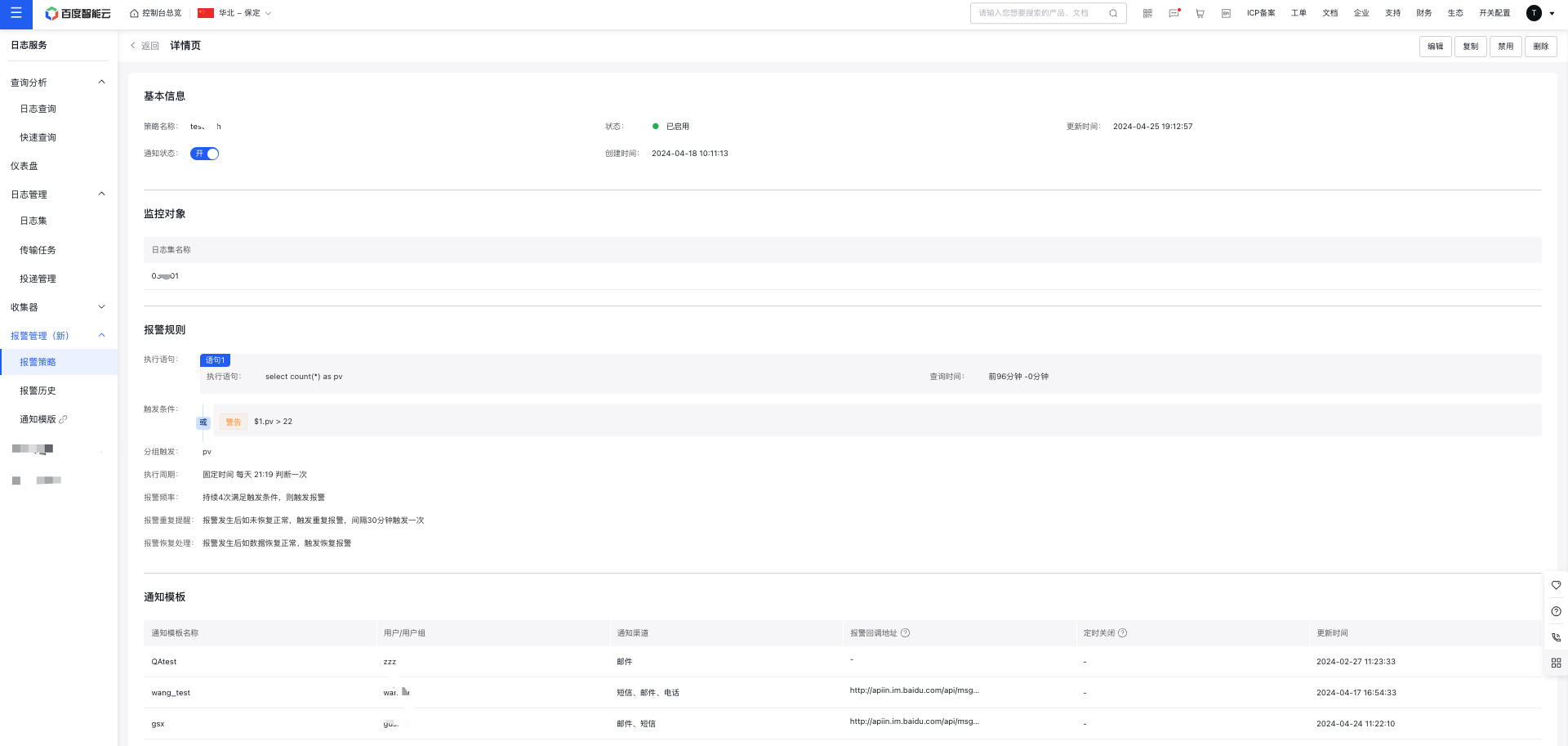
Notes: To simplify strategy management, the alarm strategy details page includes Copy, Edit, Delete, and Enable/Disable buttons, allowing you to perform these actions while viewing the strategy details.