
Install Agent in K8s Environment
Overview
This document outlines the process of selecting and deploying agents, as well as applying agent logs in Kubernetes environments.
Method 1: For CCE containers, install the log component directly on the container engine platform (recommended)
- Log in to Cloud Container Engine Console (CCE).
- In the left navigation bar, click on the cluster list.
- On the Cluster List page, click on the desired cluster to open the cluster management page.
- From the cluster management page, select "Component Management" in the left-hand navigation menu.
- Go to the "Log" tab under the Component Management page, find the CCE Log Operator component, and click "Install.\
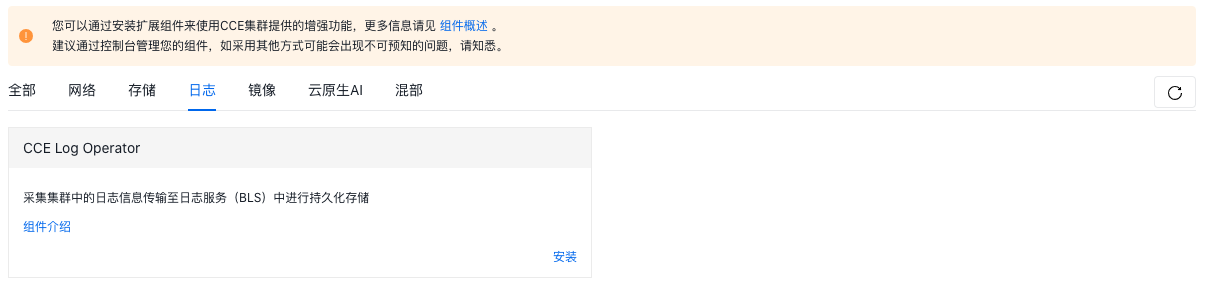
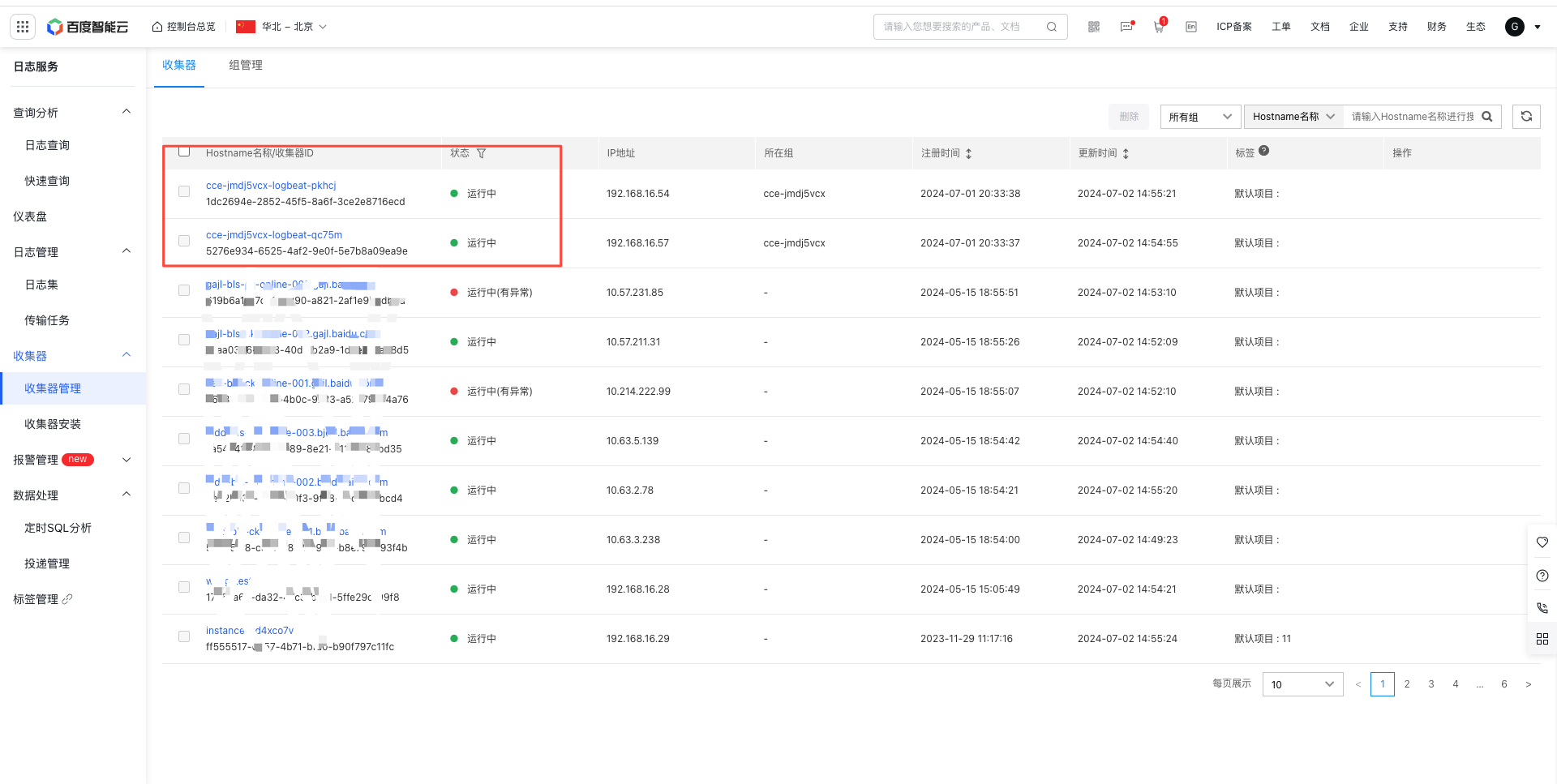
- After installation, check the agent with installed log components on the BLS platform
Method 2: Deploy and install the agent via script
This section first explains how to choose between the two types of agents, then details their deployment methods, usage, and operating principles for both DaemonSet and Sidecar.
1. How to select between two types of agents, DaemonSet and Sidecar agent
| Container type | Collectible container log types | Deployment methods | Advantages | Recommended scenarios |
|---|---|---|---|---|
| DaemonSet | Stdout and internal logs of container | Deploy one agent per worker node in the cluster. Multiple application containers on the same node can share a single agent. | Resource usage is relatively low and mostly unobtrusive, with no risk of losing logs. | Use DaemonSet to collect stdout logs from containers that are highly sensitive to resource consumption or from complex applications with multiple containers. |
| Sidecar | Internal logs of container | Create and delete it together with each application container. | Simple to operate, with the task configuration matching that of non-container environments. | Use Sidecar to collect internal logs of containers in straightforward scenarios involving a single application container. |
2. Resource download address
k8s yaml script download address:
3. DaemonSet mode
(1) Deployment method
Script Modification
Below is a partial content of the DaemonSet script:
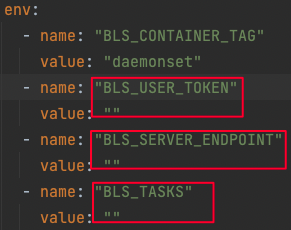
Note: The name and value of “BLS_CONTAINER_TAG” are system information. Do not modify them, otherwise the function will fail. Users need to modify the value in the red box.
First, the “BLS_USER_TOKEN” value corresponds to the token value under Agent Installation on the user console. Copy this string into the “BLS_USER_TOKEN” field in the DaemonSet file as shown in the figure.
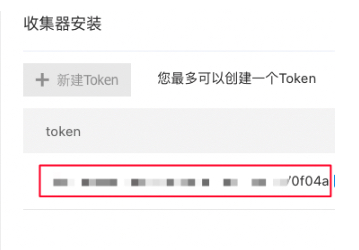
Note: This token value is the unique certification information of logbeat, which is considered confidential and do not disclose it to others.
Second, the “BLS_SERVER_ENDPOINT” value is the service address of BLS Server. Users can select the correct service address for their region and fill it in the “BLS_SERVER_ENDPOINT” value field in the DaemonSet file.
| region | endpoint |
|---|---|
| Beijing | https://bls.bj.baidubce.com:8185 |
| Guangzhou | https://bls.gz.baidubce.com:8185 |
| Suzhou | https://bls.su.baidubce.com:8185 |
| Baoding | https://bls.bd.baidubce.com:8185 |
| Wuhan | https://bls.fwh.baidubce.com:8185 |
| Hong Kong | https://bls.hkg.baidubce.com:8185 |
Finally, “BLS_TASKS” value represents the pre-bound task list for logbeat. This function is optional in DaemonSet mode. If users require logbeat to automatically bind and execute corresponding transmission tasks in the console upon startup of logbeat, this value must be configured. This function is recommended because after the agent container is started, a new agent instance will be generated. If the task is not associated automatically, they should be manually associated. Users need to paste the transmission task ID from the console into this value field, with multiple task IDs being separated by commas.
Deployment Command
kubectl apply -f logbeat-daemonset.yaml(2) Usage
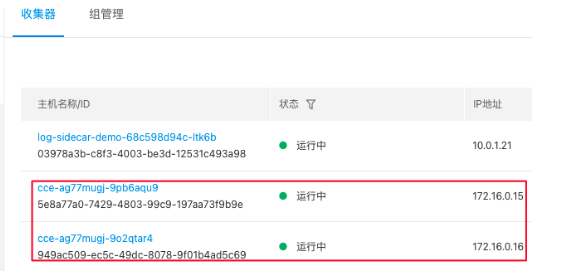
After running the DaemonSet container deployment command and verifying its successful creation within the k8s environment, the new container instance can be viewed on the Agent Management page of the BLS console, as illustrated in the figure below.
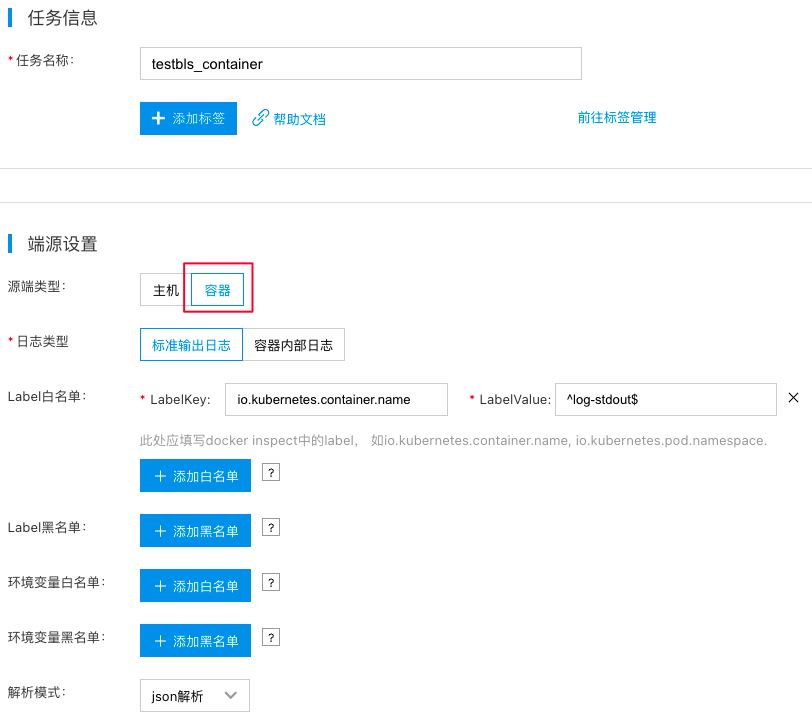
Next, create a transmission task with the source location type set to Container on the Transmission Task page, as shown in the figure below.
Note:
- For the key in the allowlist/denylist of labels in task configuration, use labels obtained from container inspection (e.g., io.kubernetes.container.name, io.kubernetes.pod.namespace) rather than labels from k8s resource metadata configuration.
- When using DaemonSet to collect internal container logs, ensure that any parent path of the container’s internal log files is mounted to the host, such as through emptyDir.
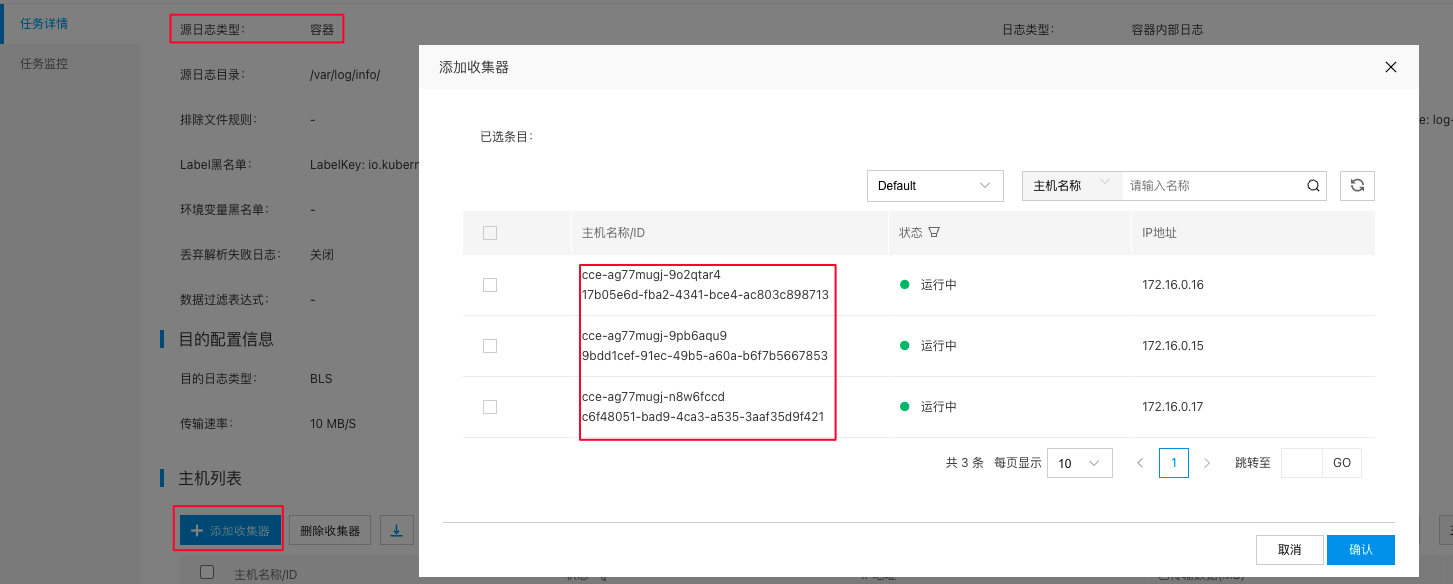
Once you’ve created the transmission task, add an agent to it. At this stage, only DaemonSet containers can function as agents. Tasks designed for container types will not work with standard agents, as demonstrated in the figure below.
Approximately one minute after adding the agent, the task will be deployed to the agent, and its operational status can be checked on the task details page.
(3) Principle explanation
The DaemonSet resource type in k8s ensures that there is always one Pod replica running on every node. When a node joins the cluster, a new Pod is automatically created for it. If a node is removed, these Pods are reclaimed. Deleting a DaemonSet will also remove all Pods it created.
This characteristic of DaemonSet enables the deployment of a log-collecting DaemonSet on each node, allowing it to gather all container logs on that node.
By utilizing features of the container runtime API and k8s, the Docker API can be employed to filter application containers requiring log collection. This enables locating log file paths through each container’s unique mechanism to determine their positions within the node, completing log collection.
4. Sidecar mode
(1) Deployment method
Script modification Below is a partial content of the Sidecar script:
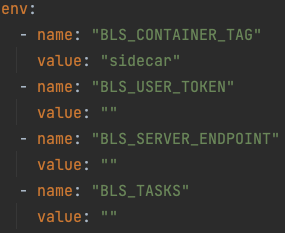
The script parameter filling method for Sidecar mode is the same as that for DaemonSet. The sole distinction is that “BLS_TASKS” value is mandatory in Sidecar mode, which depends on differences between operating modes and then will detail below.
- Note 1: First create the corresponding transmission task on the console, then copy the task ID to the “BLS_TASKS” value, with multiple task IDs being separated by commas.
- Note 2: The transmission task here should be tasks with the source location type of host, not container-type tasks.
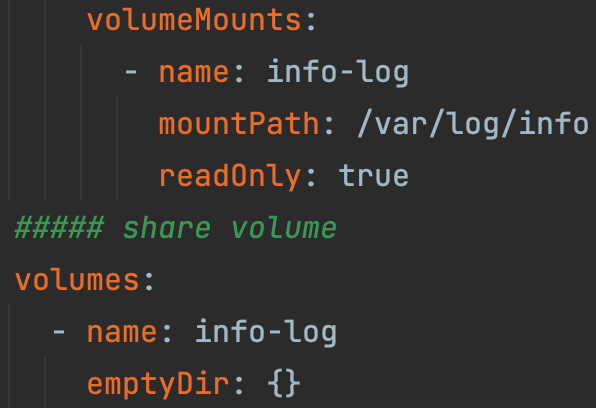
- Note 3: Since the log collection principle of Sidecar containers is to share log directories or files with application containers, the correctness of shared directories or files must be ensured, as shown in the example below.
Deployment Command
kubectl apply -f logbeat-sidecar.yaml(2) Usage
After deploying the Sidecar-type agent alongside the application container, it automatically associates itself with the transmission task. As a result, once the container is created, it immediately begins to collect and transmit log files.
It’s important to note that when creating a Sidecar-type transmission task, the source location type must be set to Host, not Container. The Container type is specifically intended for DaemonSet containers.
Since the Sidecar container agent operates like non-container agents—by collecting local files—it can only gather internal file logs from application containers, not stdout logs.
(3) Principle explanation
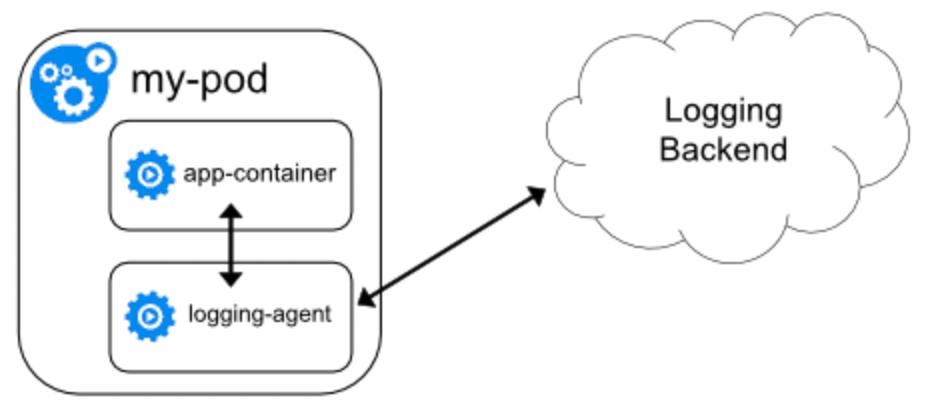
In terms of its operating principle, as shown in the figure above, the Sidecar agent is deployed within the same POD as the application container, sharing the same lifecycle as the application container.
Additionally, because the Sidecar container shares log directories or files with the application container, the Sidecar agent collects logs by accessing local log files. This ensures users don’t perceive the Sidecar agent as a container. Its transmission tasks function identically to those on non-container agents. However, due to the flexibility inherent in container deployment, the transmission task should be pre-assigned using the task ID parameter in the configuration for immediate startup and operation, unaffected by container drift.
Nevertheless, since it shares the lifecycle of the application container, if the application container's logs are not mounted to the host, they may be lost along with the container before log collection is completed.
Agent updates
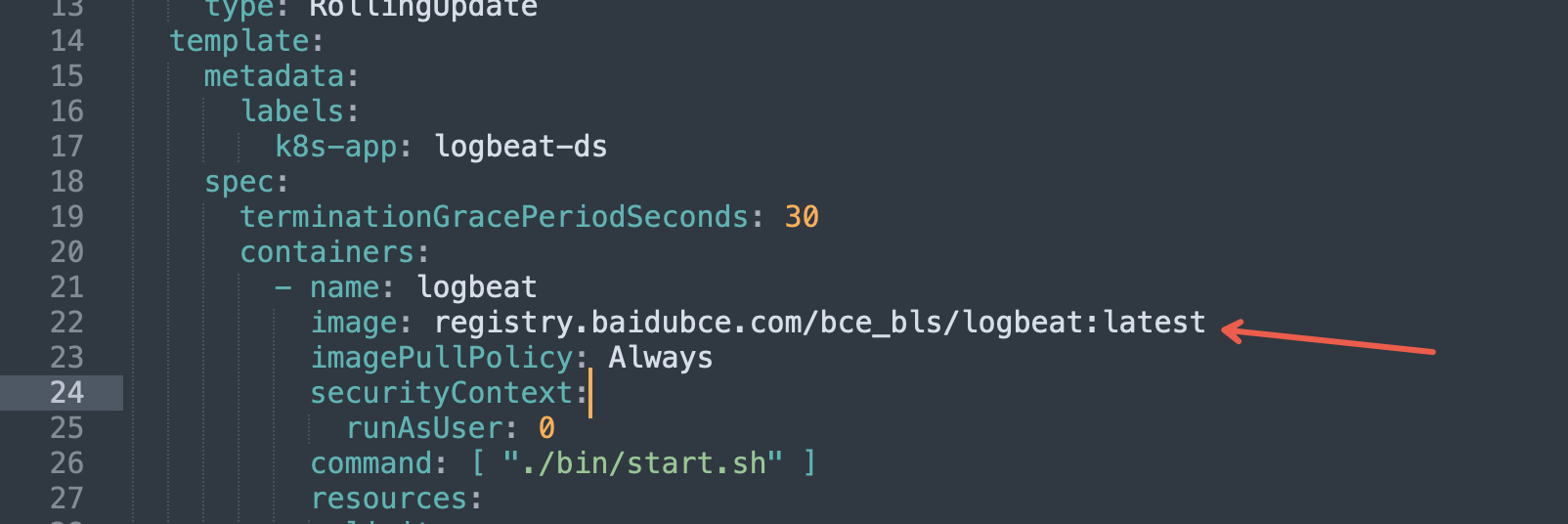
To specify the agent version, update the logbeat version in the yaml file. Using "latest" deploys the newest version. Restarting the POD will apply the latest logbeat version, or you can manually update to a specific version, such as changing it to registry.baidubce.com/bce_bls/logbeat:1.6.0, which represents version 1.6.0.
Summary
An introduction to deploying and using agents in a k8s environment is described above. In the case of any inconvenience or optimization suggestions, please submit a ticket for consultation.