
Access Cluster Service Pages
Access Cluster Hadoop Yarn Service Page
Use Web UI to access Hadoop Yarn, and the specific operation steps are as follows:
- Open "Product Service>MapReduce>Baidu MapReduce-Cluster List", and click the created cluster to enter the instance details page.
- In the "Service Page" bar, click the link for "Hadoop Yarn".
- In the pop-up authentication page, enter the user name and password set during the creation of a cluster, and then access the cluster service page.
Access Cluster’s Hue Web Page
In BMR, you can add the Hue application to:
- Edit and execute the Hive script.
- Check the cluster’s HDFS.
BMR provides two ways to access the Hue service page: Web UI and SSH Tunnel.
Use Web UI to Access Hue Web Page
- Add Hue and Hive applications when you set software configurations in Create Clusters.
- Open "Product Service>MapReduce>Baidu MapReduce-Cluster List", and click the created cluster to enter the instance details page.
- In the "Service Page" bar, click the link for "Hue".
- In the pop-up authentication page, enter the user name and password set during the creation of a cluster, and then access the cluster service page.
Notes:
- If the cluster has 2 CORE nodes and the Hue Web is used to upload files, it is recommended the file size not exceed 64MB.
- If the cluster has three or more CORE nodes and the Hue Web is used to upload files, it is recommended the file size not exceed 1.5GB.
Use SSH Tunnel to Access Hue Web Page
- Add Hue and Hive applications when you set software configurations in Create Clusters.
- Create the SSH Tunnel and configure the browser. For more information, please see all steps in Preparation).
- After proxy setup, execute the
hostnamecommand on the Master node to obtain the hostname. The following figure shows the result of using putty to execute thehostnameon the Master node, in which, “ndg45c458-master-instance-8y6oeh6l.novalocal” is the hostname of Master node:

Note: If you want other users, please log in to the Master node and create the system users, and make sure the user UID is larger than 500. For the Master login, please see SSH Connection to Cluster.
- Use http://hostname:8888/ to access Hue Console. The following is the Hue access interface.
Access Cluster’s Ganglia Page
The BMR cluster integrates the Ganglia services, and you can access Ganglia’s Web frontend. As an open-source cluster monitoring project initiated by UC Berkeley, Ganglia is designed to measure thousands of nodes. Ganglia’s core consists of gmond, gmetad, and a Web frontend. The main use is to monitor the system performance, such as CPU, mem, disk use ratio, I/O load, and network traffic. It is easy to see the working status of every node in the curve, which plays an important role in the reasonable allocation and distribution of system resources and the overall improvement of system performance.
Use SSH Tunnel to access Ganglia service page, and the specific operation steps are as follows:
- Create the SSH Tunnel and configure the browser. For more information, please see all steps in Preparation.
-
After the proxy setup, the following two addresses are used to access the Ganglia services:
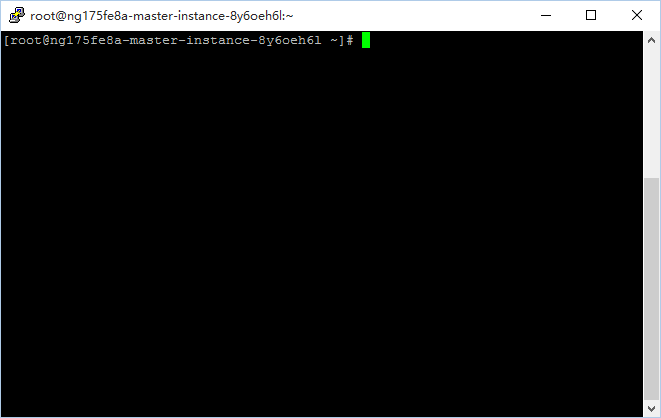
- master_name/ganglia, and master_name is master node’s hostname. As the following figure shows, “ng175fe8a-master-instance-8y6oeh6l” is the master node’s hostname:
- Private IP/ganglia, and the private IP is obtained from "Instance Details" of the console.
- The following is the Ganglia service page:
